


Subscriptions are convenient, and also they will rob a wallet quietly. The streaming applications, productivity tools, VPNs, fitness apps, and entertainment services usually recharge themselves, even when you are not using them. Have you ever found yourself wondering why your card is continually being charged? This guide will take you step-by-step through the steps of how to cancel subscriptions on iPhone, including, but not limited to, app subscriptions, VPNs, and Apple TV. You will also know how to check all your ongoing plans simultaneously in order to reclaim your control over spending.
Table of Contents
Why You Should Regularly Review iPhone Subscriptions
It is a common misconception among many users that uninstalling an app can end a subscription. However, this is not true. Billings on Apple is done independently on your Apple ID. This implies that you can maintain a subscription even when the application is not on your phone.
You can also be surprised by auto-renewals being reactivated annually or on a monthly basis. These minor amounts add up and become extremely expensive over time. Checking your subscriptions in a few minutes can save you money, get rid of waste, and provide you with absolute clarity regarding where your digital funds are going.
The Fastest Way to Cancel Any Subscription on iPhone
In case you wish the fastest route possible, then it is easy to cancel. The only thing you have to do is open Settings, tap your Apple ID name at the top, then select Subscriptions, then tap on the service that you no longer require and then tap Cancel Subscription. On the one hand, Apple will not lose access until the conclusion of the billing period, so you will not lose immediate advantages.
Step-by-Step Guide to Cancelling Subscriptions on iPhone
Apple offers a variety of options to cancel subscriptions based on your device and depending on the manner of original purchase of the subscription. Knowledge of such techniques will make sure that you do not overlook any subscription (invisibility).
How to Cancel a Subscription Through iPhone Settings
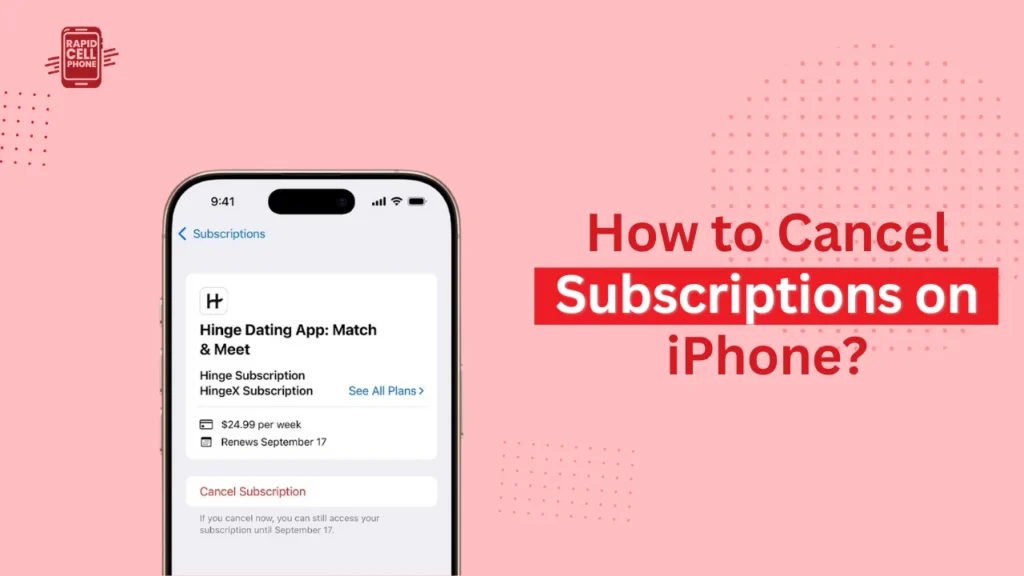
The most trustworthy approach would be the Settings app as it shows all subscriptions charged using your Apple ID. First, open Settings and tap your name that is located at the top of the screen. This will open your Apple ID management page. Within it there is a section called Subscriptions. After choosing, you will be presented with a full list of your active and expired subscriptions.
Select the subscription to cancel. A detailed page will open regarding billing frequency, cost, and date of next renewal when you tap it. The Cancel Subscription will be at the bottom. Recheck your selection and Apple will change the status immediately.
How to Cancel Subscriptions Using the App Store
This approach can be more intuitive to you, should you visit the App Store frequently. Go to the App Store, and tap the profile image that is on the upper-right-hand side. Under your account settings, there is a section called Subscriptions. The interface in this case resembles the Settings application and shows all plans that are active. Choose the one you do not want anymore and go through the cancellation options.
This would be useful when you subscribed to a service within the App Store and you want to manage your billing quickly without having to navigate through the Settings.
How to Cancel iPhone Subscriptions Using a Web Browser or Mac
You are not always with your iPhone, or it could be lost or broken. You can also manage subscriptions on other devices using Apple.
In a Mac, open the app store, then at the bottom-left, enter Account Settings. You must scroll till you reach the Subscriptions section. The choice of Manage will disclose all your running plans. You can use a browser and visit account.apple.com and log in using your Apple ID.
Subscriptions are located in Settings. It also allows you to see and cancel services through the web interface, which comes in handy when you are not on your iPhone.
How to Cancel Specific Types of Subscriptions on iPhone
The further approaches may be needed to various types of services. Some of the specific methods that address the frequent questions concerning app subscriptions, VPNs, Apple TV, and multi-active plans are detailed below.
How to Cancel App Subscription on iPhone
In case you want to know how to cancel app subscription on iPhone, it is the same way as the usual way of cancellation. The majority of apps subscriptions are directly managed by Apple, like streaming apps, design tools, productivity apps, or AI services.
To cancel, open the settings, go to the Apple ID, then go to subscriptions, then select the app and cancel. This list will show the subscription even though you may have removed the app off your home screen, so long as it is being billed via Apple. In the case of free trials, remember that certain services might terminate the benefits as soon as the cancellation is made, and some will permit you to access it until you run out of the trial period.
How to Cancel VPN Subscription on iPhone
To know how to cancel VPN subscription on iPhone, you will need to identify whether VPN has been billed by Apple or by the VPN provider.
Numerous mainstream VPN apps such as Hotspot Shield, Turbo VPN, or Secure VPN are charged directly by the App Store. It is easy to cancel them: open Settings, Subscriptions, and cancel them just like any other application.
Nevertheless, large VPN brands like NordVPN, ExpressVPN, Surfshark, and ProtonVPN tend to do direct billing on their websites. When this occurs, the subscription will not be listed in your Apple Subscriptions list. It requires you to log into your account on the provider site, to the billing page, and cancel it. After successful cancellation, you are normally contacted with a confirmation email.
How to Cancel Apple TV Subscription on iPhone
Apple ID billing is also supported with Apple TV subscriptions and can be canceled easily. To cancel Apple TV+, tap cancel, then tap your Apple ID and tap the Subscriptions button. Tap Cancel Subscription, Select Apple TV+.
Apple TV+ is subscribed to by some users via non-Apple devices. Then go to tv.apple.com, log in using your apple id, and take care of your subscription there.
When you are an Apple one subscriber, or have Apple TV+, Apple Music, and iCloud included together, you cannot cancel Apple TV separately. Instead, you need to upgrade or upgrade the Apple One.
How to Cancel All Subscriptions on iPhone
The question many users ask is how to cancel all subscriptions on iPhone. The Apple service does not offer a cancel all option, but you can see the full subscriptions list on a single page and cancel them manually. You can see all of the active plans when opening Settings → Subscriptions.
This is when you should audit what you do not need anymore. Begin with the yearly renewable or higher-priced subscriptions. Then check smaller monthly subscriptions or trials you did not cancel.
Reading through your list one by one will allow you to cancel a lot of redundant recurring expenses and clean up your digital bills within some minutes.
Troubleshooting When You Cannot Cancel a Subscription
You might experience situations when you are unable to locate a subscription or there is no cancel button available. This does not indicate that something is wrong, it is just that your subscription is being treated differently.
When the Cancel Button Does Not Appear
In case you cannot locate the cancel button, it is a general indication that the subscription has been cancelled or expired. Apple does this by indicating the subscription in the expired section. The other reason might be that the service is a part of an Apple One bundle wherein you need to handle the whole bundle rather than a single service.
When the Subscription Is Not Listed in the Apple ID Subscriptions
In case the subscription is not present at all, you probably did not buy it in the App Store. Numerous applications, particularly VPNs and premium content providers, bill their websites. To fix this, find the inbox of your email with receipts or your bank account statement and figure out who the provider is. Then you will have to go to their site to cancel the plan.
Getting a Refund for an Accidental Subscription
In case you have been charged without warning, you can ask Apple to provide you with a refund. To do this, visit reportaproblem.apple.com, choose the subscription, choose the reason (such as accidental billing or unauthorized charge), and send your request. Apple usually reacts in a matter of days.
How to Prevent Unwanted Subscription Charges in the Future
Subscriptions do not just stop at the point of cancellation. To prevent the emergence of unnecessary charges in the future, consider reviewing your subscriptions once a month. Accidental renewals can also be prevented by setting reminders prior to the expiry of trial periods.
Others use a separate debit or virtual card exclusively on subscriptions. This simplifies the process of tracking renewals and makes sure that you identify any unsanctioned charges in time. Checking email responses and bank statements on a regular basis can also keep you in check of your spending patterns. When you are regularly using apps, only switch to long-term annual plans when you are certain.
What to Check Before Cancelling a Subscription
You should be aware of whether your subscription is billed on Apple or through the provider site before canceling. When it is included in a package like Apple One, then canceling one will necessitate alteration of the complete package. Taking screenshots may also be useful to have a record of your current plan details so you can resume it at a later time should you need.
Most users like to store confirmation emails too. Another good idea is to check your renewal date, canceling early can provide time to access it until the current period of billing expires.
Conclusion
Unsubscribing on iPhone is easy after you know where Apple keeps your billing details. Through a regular review of what you subscribe to, canceling of the non-used subscriptions, and proper management of your billing in a responsible manner, you save money and prevent unexpected costs. It is time to look at your active subscriptions today–you might identify a number of the services that you do not need.
FAQs About How to Cancel Subscriptions on iPhone?
How do I cancel a subscription on iPhone?
To cancel any service that is billed by Apple, simply open the Settings app, go to Apple ID, and then Subscriptions, choose the service, and tap Cancel Subscription.
How do I cancel an app subscription on iPhone?
You can view all your app subscriptions in your Subscriptions list in Settings. Click the application and cancel it in the details page.
How can I cancel a VPN subscription on iPhone?
Provided that the VPN was charged by Apple, cancel it in your Subscriptions list. In case the VPN was bought on the provider site you will need to log in on their site and cancel.
How do I cancel all subscriptions on iPhone?
You cannot cancel them, but you can see all your subscriptions in the Settings tab and cancel them one by one.
How do I cancel Apple TV subscription on iPhone?
Go to Open Settings and then find Apple ID and Subscriptions and unsubscribe to Apple TV+. If you subscribed to it on a non-Apple device, cancel via tv.apple.com.
0 Comments