
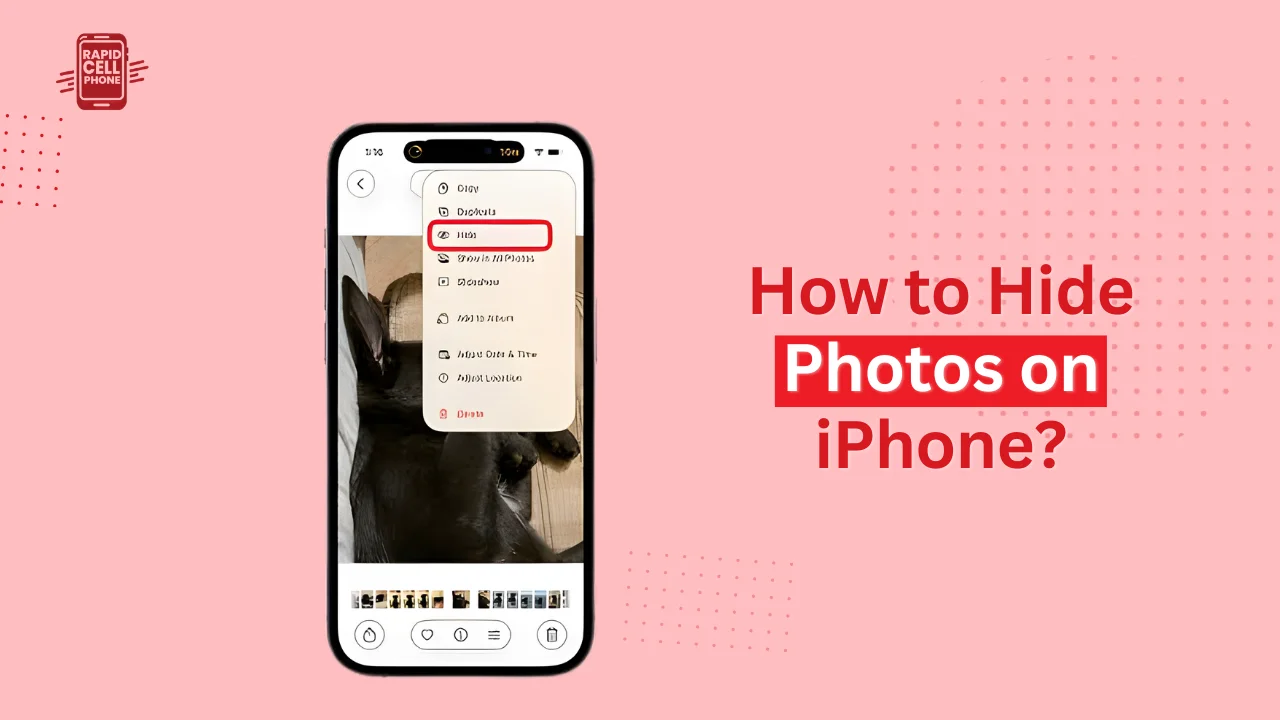

Your iPhone holds some of your most intimate experiences, including family pictures and personal screenshots as well as sensitive data and videos. Whereas iOS has a reputation of high security, not all people are aware of how to effectively manage the privacy of their photos. This is why it is so essential to know how to hide photos on iPhone.
Apple also has built-in features that enable you to hide pictures, lock them with Face ID, and even make the hidden album entirely disappear. Here, in a step-by-step guide, you will find out all the official and practical trick to hide photos on iPhone, know the degree of safety of those tricks and some efficient tricks to hide really secretive pictures.
Table of Contents
What Does “Hide Photos on iPhone” Mean?
With the case of concealing photographs in an iPhone, the system does not erase or transfer them outside the phone. Rather, iOS will delete the chosen pictures off your primary photo displays like the Library, For You, and any normal Album.
Photos hidden are placed in a different album named the Hidden Album. This album is not accessible at once and on modern versions of iOS is secured by Face ID, Touch ID or your device passcode. This is why concealing photos can be handy every day in terms of privacy, particularly when the phone is in another person’s hands.
It is however important to know that concealing photos is not the same as encrypting them independently. The privacy varies with the way you set your settings.
How to Hide Photos on iPhone Using the Photos App
The easiest method to conceal pictures and videos is through the built in Photos app that Apple offers. This technique does not presuppose the use of any extra applications and is compatible with all new iPhones.
Step-by-Step Method to Hide Photos
In order to conceal the photos in your iPhone, you need to open the Photos app and choose the photo or video you want to conceal. In case you wish to hide more than one item, simply tap the Select option and select all the applicable photos.
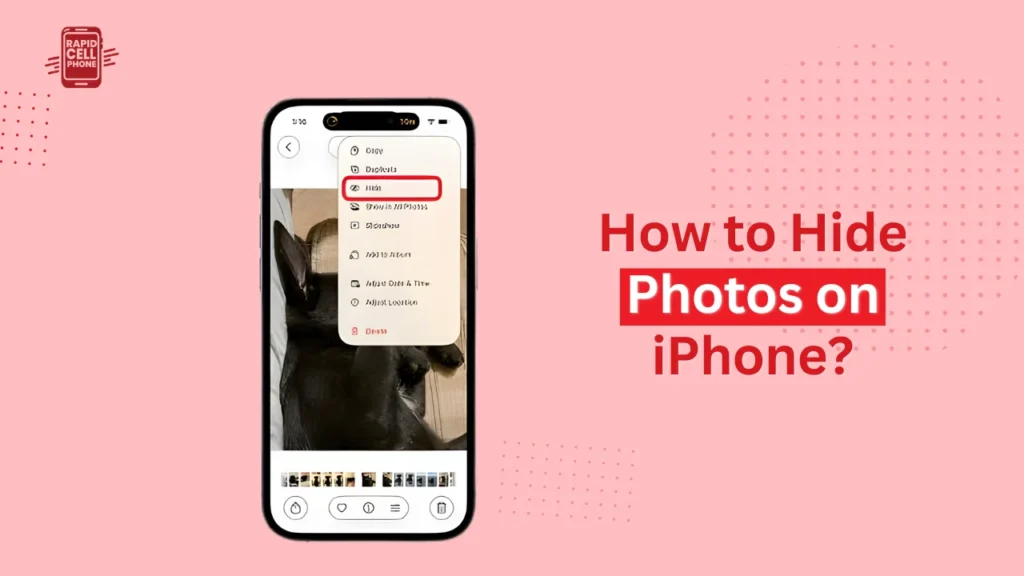
Once the photos are picked, either tap the three-dotted menu or tap the Share button and select the Hide option. iOS will require confirmation to hide the photos. After confirmation, the photos will automatically vanish in your main library.
It can handle photos, videos, screenshots, and even Live Photos, which makes it a versatile solution to the majority of users.
Where Do Hidden Photos Go on iPhone?
Many users believe that after the photos have been hidden, they are lost or deleted. In practice, secret photos are saved in a certain folder of the Photos application.
Finding the Hidden Album
In order to view concealed pictures, tap Photos, and select Albums. Keep scrolling down till you reach the Utilities section, there you will encounter the Hidden album. Upon opening it, you will input Face ID, Touch ID, or your passcode, depending on the device settings.
After the authentication process, you can see all your hidden photos and videos.
How to Unhide Photos on iPhone
IOS can open the process fast and simple, in case you need to see your hidden photos once more.
Restoring Hidden Photos to the Library
Tap the Hidden album and swipe in with Face ID or passcode. Tap the menu icon and select Unhide, then select the photo or photos you want to restore. The images that were chosen will be duplicated back into your main photo library just as it was previously.
This enables you to conceal and reveal photographs in a frequency you want without losing quality or metadata.
How to Lock Hidden Photos on iPhone for Extra Privacy
Sometimes, all that is needed to protect the photos is to hide them, but the Hidden album should be locked. Apple enables you to protect concealed pictures with biometric authentication.
Enabling Face ID or Touch ID for Hidden Photos
To set your photos to hidden, go to your iPhone settings and scroll to Photos. Allow the choice of Face ID or Touch ID on the Hidden album.
When this option is turned on, only a biometric verification or device passcode can allow other people to access your hidden photos. It is one of the most significant steps that should be taken by users who wish to preserve privacy of photos.
How to Completely Hide the Hidden Album on iPhone
In case users desire to be most discrete, Apple permits you to conceal the Hidden album itself, preventing it from showing up in the Photos application.
Turning Off the Hidden Album Visibility
Click on Settings, Photos, and turn off Show Hidden Album. Once this has been turned off, the Hidden album will be removed in the Albums section of the Photos app.
Your concealed pictures are securely kept, but the album is just not visible in the presence unless you turn it back on in settings. This comes in handy in cases when you do not want anyone to even suspect that there are hidden photos in your iPhone.
Are Hidden Photos on iPhone Really Secure?
Although the hiding feature offered by Apple is convenient, it is worth knowing its limitations.
Your device has a security system that contains hidden photos, and it provides Face ID, Touch ID, and passcode protection. Nevertheless, concealed photographs remain in the Photos application and may be synchronized to iCloud in case iCloud Photos is turned on.
This implies that concealment is best when you do not want anyone to view the photos casually but may not be adequate when it comes to highly sensitive information. In such cases, other techniques must be taken into consideration.
Using the Notes App to Hide Photos Securely
The Notes app is one of the most useful alternative tools when it comes to keeping personal pictures.
How Notes Improve Photo Privacy
You may add photos to a note, put it under password or Face ID and delete the original photo in the Photos app. Locked notes are encrypted and need authentication each time they are opened.
The technique is particularly applicable to documents that are sensitive, ID pictures or personal pictures that need greater security compared to what the Photos application offers.
Using Third-Party Apps to Hide Photos on iPhone
The third-party photo vault apps which are privacy-specific are preferred by some users.
Such apps have such features as password-protected vaults, hidden app icons, and offline storage. Although they may offer more sophisticated security, they also demand trust in the developer of the apps, and may be subscription based.
When you take this path, remember to use reliable apps and examine permissions and privacy policies.
Tips to Keep Your iPhone Photos Private
It is not enough to hide photos to keep them private. Always have a strong device passcode and turn on Face ID or Touch ID. Turn on your locked album, scan through permissions often, and do not give applications that do not need them full access to your photos.
Moreover, learn about the functionality of the iCloud Photos and determine if you prefer to have your hidden photos synchronized to the cloud or not.
Conclusion
Learning how to hide photos on iPhone allows you to take charge of your privacy via the internet. The Hidden album of Apple, paired with either Face or Touch ID, is a practical and convenient tool to most users.
Greater security requirements include techniques such as locked Notes or trusted third party apps. A combination of tools is usually the best solution, and it depends on the sensitivity of your photos.
FAQs About How to Hide Photos on iPhone?
Where is the Hidden Album on iPhone?
Hidden album can be found in Photos in Albums under the Utilities.
Do hidden photos sync with iCloud?
Yes, the hidden photos are automatically synchronized to iCloud when there is an iCloud Photos setting.
Can I hide entire albums on iPhone?
No, it is not possible to hide albums, just individual photos or videos in iOS.
Can someone access hidden photos without Face ID?
Not when Face ID, Touch ID or passcode protection is applied to the Hidden album.
0 Comments