

Apple AirPods are known for their smooth and instant connection with iPhones, but if you’re new to the Apple ecosystem or setting up a fresh pair, the process can feel confusing at first. Many users search for how to connect AirPods to iPhone when the setup animation doesn’t appear, Bluetooth doesn’t respond, or the AirPods refuse to connect.
This in-depth guide explains everything clearly, from first-time pairing to reconnecting AirPods, switching devices, and fixing common issues. No matter which AirPods model you’re using, this guide will help you connect them quickly and correctly.
Table of Contents
What to Check Before Connecting AirPods to iPhone
Before pairing AirPods with your iPhone, a few basic requirements must be met. Skipping these steps often leads to connection problems.
Your iPhone should be powered on and unlocked, with Bluetooth enabled from the Settings menu. AirPods need sufficient battery charge, as low power can interrupt the pairing process. It’s also recommended to update your iPhone to the latest iOS version to ensure full compatibility.
Being signed in to your Apple ID is important as well, because AirPods automatically sync across Apple devices linked to the same account.
How to Connect AirPods to iPhone for the First Time
Automatic AirPods Pairing Method
The easiest and fastest way to connect AirPods to an iPhone is through Apple’s automatic pairing feature. This method works best for brand-new AirPods or those that haven’t been paired with another device.
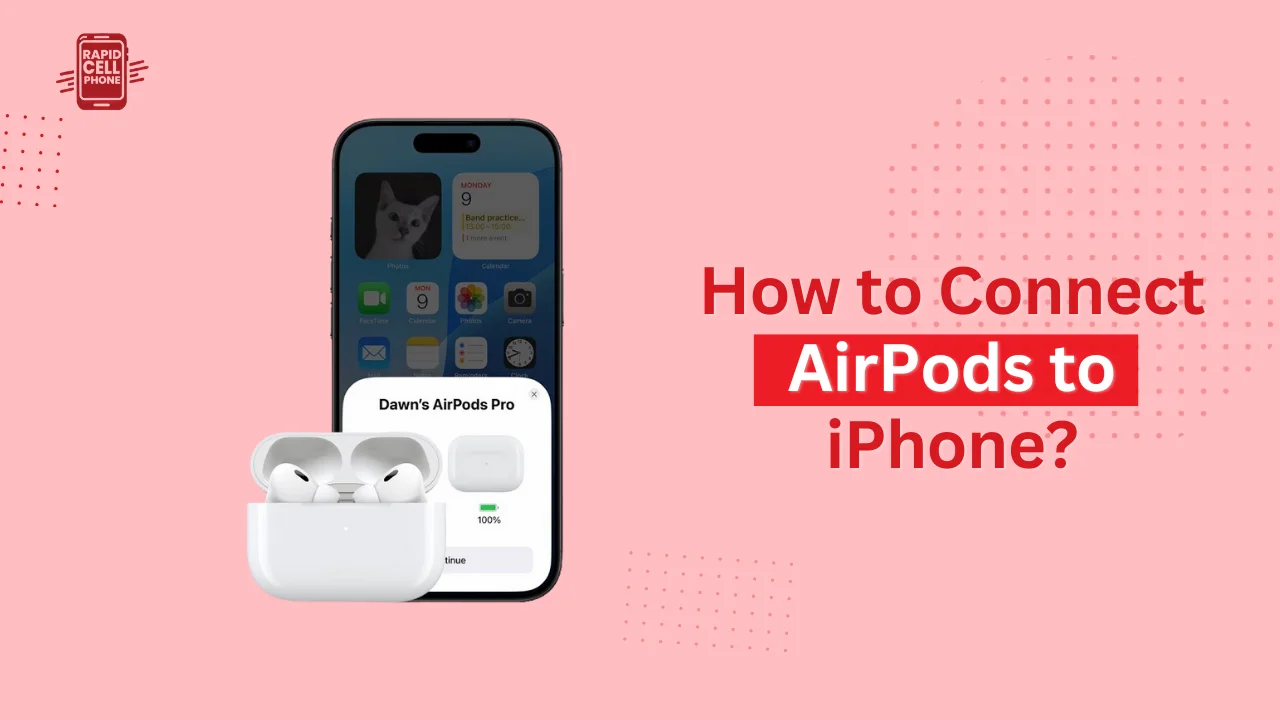
Start by unlocking your iPhone and staying on the Home Screen. Open the AirPods charging case with the AirPods inside and hold it close to your phone. Within a few seconds, a setup animation should appear on the screen.
Tap Connect and follow the brief on-screen instructions. Once the process finishes, you’ll see a confirmation message showing the battery status of your AirPods and case. From this point onward, your AirPods will automatically connect whenever they’re near your iPhone.
This is the most common and reliable answer to how to connect AirPods to iPhone.
Manual AirPods Pairing Using Bluetooth
If the automatic setup animation does not appear, you can connect AirPods manually using Bluetooth settings. This method is especially useful if you’re pairing AirPods with a new iPhone or after resetting them.
Keep the AirPods inside the charging case and open the lid. Press and hold the setup button on the back of the case until the status light starts flashing white. On your iPhone, go to Settings > Bluetooth and ensure Bluetooth is turned on.
When your AirPods appear in the list of available devices, tap their name to connect. After a few seconds, the connection will be complete and ready to use.
How to Connect Different AirPods Models to iPhone
Connecting Standard AirPods
Standard AirPods all use the same pairing process. The automatic setup animation appears when the case is opened near the iPhone. Once paired, the AirPods remain linked to your Apple ID and reconnect automatically.
These models rely heavily on Bluetooth stability, so keeping your iPhone updated helps ensure smooth performance.
How to Connect AirPods Pro to iPhone
AirPods Pro connect in the same way as standard AirPods but include additional configuration options. During setup, you may be prompted to enable features such as Active Noise Cancellation, Transparency Mode, and Spatial Audio.
After pairing, these settings can be adjusted anytime from Settings > Bluetooth > AirPods Pro, allowing users to fine-tune their listening experience.
How to Connect AirPods Max to iPhone
AirPods Max follow a slightly different process because they don’t use a traditional charging case. To connect them, press and hold the noise control button until the status light flashes white.
Bring the headphones close to your iPhone, tap Connect when the setup animation appears, and complete the on-screen instructions. Once paired, AirPods Max function just like other AirPods and support automatic device switching.
How to Reconnect AirPods to iPhone
After the initial pairing, AirPods usually reconnect automatically. Simply placing them in your ears or opening the charging case near your iPhone should trigger the connection.
If the audio does not switch automatically, open Control Center, tap the audio output icon, and manually select your AirPods. This is helpful when switching between speakers, car audio, or other Bluetooth devices.
Understanding how to reconnect AirPods to iPhone saves time and prevents unnecessary resets.
How to Switch AirPods Between Apple Devices
AirPods are designed to work seamlessly across Apple devices linked to the same Apple ID. If you’re signed in on your iPhone, iPad, or Mac, AirPods can switch automatically depending on which device is playing audio.
You can control this feature from Bluetooth settings if you prefer manual switching. This is particularly useful for users who frequently move between work calls, music, and video streaming.
Why AirPods Won’t Connect to iPhone and How to Fix It
Bluetooth or Software Issues
Bluetooth issues are one of the most common reasons AirPods won’t connect. Turning Bluetooth off and on again often fixes minor glitches. Restarting the iPhone can also refresh the connection and clear temporary software conflicts.
Make sure your iPhone is running the latest iOS version, as outdated software can interfere with AirPods connectivity.
AirPods Not Showing Up in Bluetooth
If your AirPods don’t appear in Bluetooth settings, resetting them usually solves the problem. Place the AirPods in the charging case and close the lid for about 30 seconds. Open the lid, then press and hold the setup button until the light flashes amber and then white.
After resetting, repeat the pairing process from the beginning. This step resolves most stubborn connection issues.
AirPods Connected but No Sound
Sometimes AirPods connect successfully, but audio continues playing from the iPhone speaker. In this case, check the audio output source in Control Center and manually select your AirPods.
Also ensure the AirPods are charged and seated properly in your ears, as automatic ear detection may pause audio if they aren’t positioned correctly.
Advanced AirPods Features After Connection
After you know how to pair AirPods with iPhone, you will be able to enjoy some of its more advanced features. Audio Sharing enables two sets of AirPods to be attached to one iPhone simultaneously, so it is the best to watch videos together.
Auto ear detection stops playback when you take out an AirPod, and spatial audio helps offer an immersive surround sound effect on compatible models. These characteristics considerably contribute to the daily application.
Final Thoughts
Knowing how to connect AirPods to iPhone helps one to use Apple wireless earbuds without any challenge. Whether it is your first time, you are reconnecting after a reset, or you are struggling with the connection problems, it is not complicated when you are aware of what to do.
You can have a fast and quality audio experience in your day to day life by simply updating your iPhone, having it on Bluetooth and making sure your AirPods are charged.
FAQs About How to Connect AirPods to iPhone?
Do AirPods automatically connect to iPhone every time?
Yes, when connected, AirPods will automatically connect to it when the Bluetooth is turned on and it is in the vicinity of your iPhone.
Why won’t my AirPods pair even after resetting?
This may occur because of low battery, obsolete iOS, or any interference caused by other Bluetooth devices. It is typically beneficial to charge the iPhone and the AirPods.
Can AirPods connect to Android or Windows devices?
Yes, AirPods are capable of using the Bluetooth connection with non-Apple devices, but they will not offer such functions as automatic switching or Siri.
How can I check if my AirPods are connected?
The status of the connection is visible in Control Center or in iPhone Bluetooth settings.
0 Comments