

To find out how to check SSD health, you are making a very good choice in terms of long-term performance of your system and the security of the data. Solid-State Drives (SSDs), which are faster, reliable and more durable than the conventional hard drives, are not immortal. Each SSD has a finite number of write cycles and as time passes the memory cells wear out.
The knowledge of how to operate an SSD health test, in particular on SSD health Windows 10 systems, will assist you in tracking down early warning symptoms and preventing unwelcome drive crash. This full guide will explain what exactly SSD health is, how to measure it, how to do it with the help of the built-in windows tools and what SSD health check software gives the most accurate results.
Table of Contents
What Is SSD Health and Why It Matters
SSD health is the general state of your solid-state drive and the life remaining. SSDs do not fail mechanically as in the case of traditional hard drives, but rather they degrade depending on the number of times data is written to them. All flash memory cells are limited in terms of program/erase cycles. After exhausting those cycles, no data can be recorded with any certainty in the cell.
Manufacturers design SSDs using the wear-leveling technology to distribute write operations uniformly to memory cells to increase lifespan. Moreover, SSDs monitor internal statistics with SMART (Self-Monitoring, Analysis, and Reporting Technology). SMART data enables software to analyze wear level, cumulative data written, temperature and possible indicators of failure.
The reason why SSD health needs to be monitored is that SSDs may occasionally stop working without any noticeable physical signs. Regular checks enable you to backup information in a timely manner prior to critical breakdown.
How SSD Health Is Measured
When an SSD health test is executed the software reads SMART attributes of the drive. These features give a detailed detail regarding the internal condition of the drive.
The key measures are:
Health Percentage
The majority of the SSD health check software transforms technical SMART data into a straightforward percentage. Drive that displays 100% health is new. The smaller the percentage, the more wear is accumulated. Most SSDs remain well operational even with a low of below 20, although the danger escalates when it falls below this range.
Total Bytes Written (TBW)
Total Bytes Written is a measure that is calculated to establish the amount of data that has been written into the drive. SSD manufacturers also offer a TBW rating which shows predicted endurance. Health will of course deteriorate when your drive nears its rated TBW limit.
Wear Leveling Count
Wear leveling is such that no one memory block is overutilized. An increased count of wear leveling indicates overall utilization and wear.
Reallocated Sectors
In case of memory cell failures, they are remapped to reserve blocks by the SSD. An increasing number of redistributed industries can be an indicator of decline.
Temperature
SSD lifespan is directly influenced by heat. Drives that are continuously operated at temperatures exceeding 70 C can wear out faster.
Knowing these metrics will enable you to interpret the findings of any SSD health test more precisely.
How to Check SSD Health on Windows 10
Users are particularly querying SSD health Windows 10 and luckily, Windows has simple inbuilt services to monitor drive status. Nonetheless, such tools are not as powerful as specific SSD health check software.
Using Command Prompt to Check SSD Status
Windows has a basic health indicator in the form of a simple SMART status command.
Open Command Prompt as Administrator and enter:
wmic diskdrive get status
In case the outcome is on OK, then your drive is not indicating instantaneous SMART failure. When you see Pred Fail, then you should immediately save your data.
It is a fast approach that lacks specific health percentage and wear data.
Checking SSD Health Through Windows Settings
Windows 10 and Windows 11 allow you to have limited information about drive health through system settings.
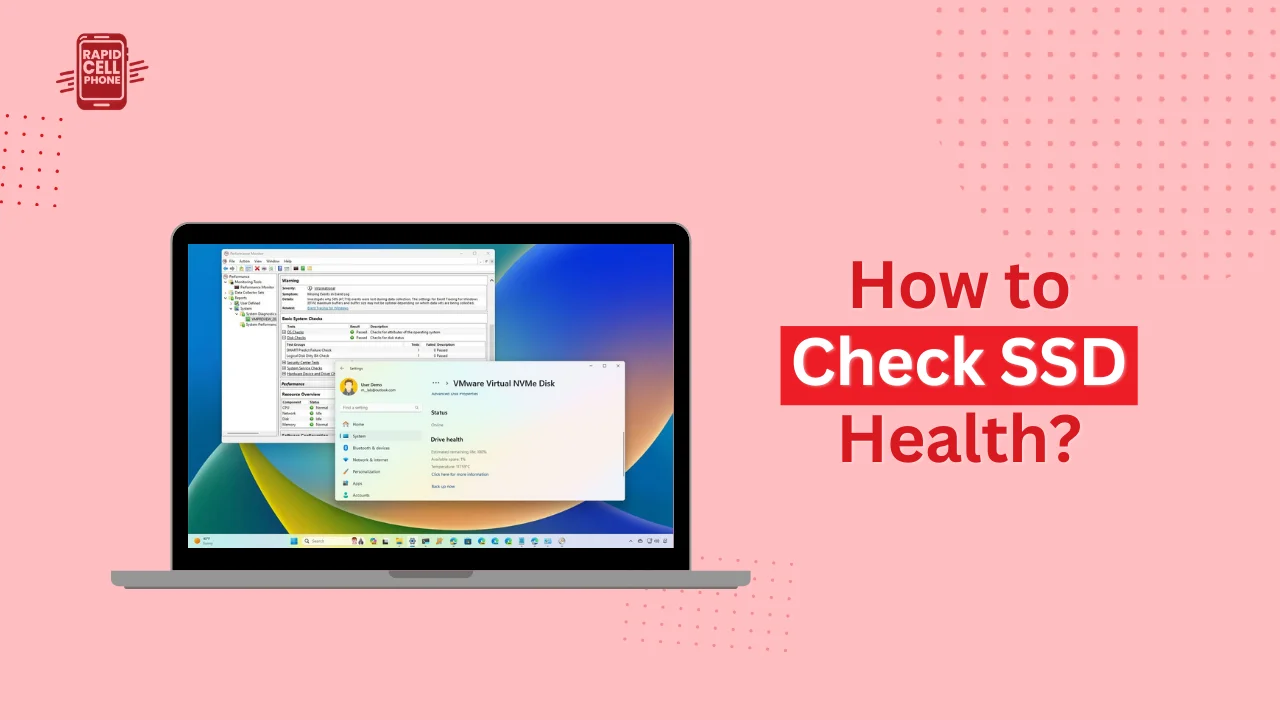
Go to Settings, System, and then Storage. Under Advanced storage settings, choose Disks and volumes. Select your SSD and open its properties to see available health data.
Once again, this only offers a superficial level of information. To carry out a complete SSD health test, it is advisable to use specialized equipment.
Best SSD Health Check Software for Accurate Results
To be sure that you get the information that is reliable and detailed, the best way is to use the proper SSD health check software. These tools interpret entire SMART data and display it in a simple form.
CrystalDiskInfo (Best Free Option)
Crystaldiskinfo is one of the most popular tools used to check the health of SSD. It offers comprehensive SMART features and a definite health percentage value.
Upon installation, the software will instantly show drive health status, temperature, power-on hours, and total host writes. Its easy to navigate user interface allows it to be used by beginners and still provide advanced data where needed by experts.
To do a full SSD health test, Crystaldiskinfo is enough to run on the majority of home users.
Manufacturer SSD Software
Numerous SSD brands have official diagnostic instruments. Such programs are hardware specific and frequently offer firmware update capabilities.
Samsung users can count on Samsung Magician. Western digital has WD Dashboard. Kingston offers Kingston SSD Manager and Seagate users have access to SeaTools.
These software are found especially handy as they have manufacturer-specific endurance metrics and firmware optimization capabilities.
Professional SSD Monitoring Tools
More sophisticated monitoring tools like Hard Disk Sentinel or AIDA64 can be the choice of advanced users, IT specialists, or businesses. The programs offer lifetime estimation models and predictive analysis guided by SMART trends.
Although they are not a requirement of a common user, they prove useful when the network is in an enterprise or high-load setting.
How to Perform a Complete SSD Health Test
A proper SSD health test is more than a mere check of a status message. Running a full test will require the installation of a reputable SSD health testing program such as CrystalDiskInfo.
Once the program has been launched, you need to select your SSD and see the metrics displayed. Pay attention mainly to health percentage, temperature, and total data written.
When health stands over 80, your driving is in good shape. Between 50 and 80 percent is moderate usage but operation is usually stable. Less than 30% is an indicator of aging, and you should start planning to be replaced. An immediate backup is highly encouraged in case there is a fall in health below 10%.
Frequent check-ups will only enable you to detect gradual changes as opposed to responding to sudden failures.
Signs Your SSD May Be Failing
Even though SSDs do not generate mechanical noise as compared to traditional hard drives, they generate warning signs when degrading.
You can experience a longer boot time, system lock, file corruption, unforeseen crashes, or read-only files. The system can fail to detect the drive in certain instances.
In case of any of these symptoms, conduct an SSD health check at once.
How Often Should You Check SSD Health?
In the case of general home users, it is enough to check SSD health on a biweekly or trimester basis. Nevertheless, monthly checks are recommended in case of substantial file transfers, playing games, video editing, and high workload.
Continuous monitoring to track health should be automated in business systems and servers.
Consistency is key. Trends over time are more informative than one test.
What to Do If SSD Health Is Low
In case the results of your SSD health test are indicative of a deteriorating condition, the first and most crucial thing to do is to save up your data. Do not postpone backups even in a case when the drive itself is still operating normally.
The second step is to verify the presence of firmware updates as provided by the manufacturer because in some cases, optimized wear management can be achieved through firmware enhancements.
Provided that health is dropping at a high rate or SMART warning is observed, plan to change the drive before devastating breakdown takes place.
Proactive replacement of an SSD is much cheaper than the cost of important data loss.
Final Thoughts on How to Check SSD Health
Knowing how to check SSD health will be important in ensuring system stability and securing your data. Windows 10 offers some basic tools that can be used to check the status of drives, but they do not support detailed analysis. Proper SSD health check software provides you with the full picture of what is going on in your drive.
The SSD health tests help you to predict and control issues, maximize the drive life cycle, and achieve seamless operation. You need not wait till it fails, but you must include SSD monitoring as a system running procedure.
FAQs About How to Check SSD Health?
Can Windows 10 check SSD health?
Yes, it is Command Prompt or Storage Settings, but to get more comprehensive information, it is SSD health check software such as CrystalDiskInfo.
What does SSD health percentage mean?
It shows remaining lifespan. More than 80 percent is considered to be good, less than 30 percent indicates that the drive might require replacement in the nearest future.
How often should I check SSD health?
Home users: every 2–3 months. Heavy users: monthly. Servers: weekly.
Can an SSD fail suddenly?
Rarely, but possible. Changes in the data are avoided with regular backup and health checks.
Does temperature affect SSD health?
Yes, life can be shortened by being kept consistently above 70C.
0 Comments