
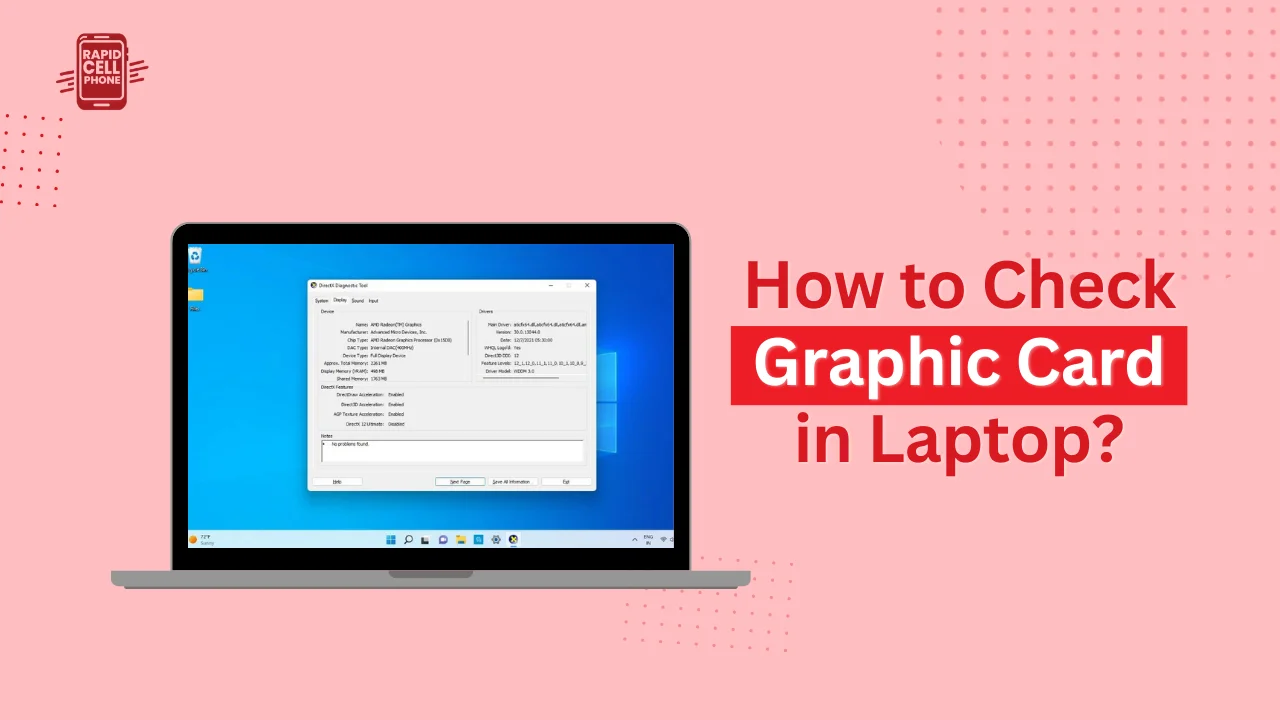

When you search how to check graphic card in laptop, probably you need to check whether your device can run a game, editing software, or any high performance application. The graphics card, which is called GPU (Graphics Processing Unit), contributes significantly to the display performance, the speed, and the general performance of the system.
Here in this overall guide, you will know how to verify graphic card in windows 10 laptop, how to verify dedicated graphic card in laptop, and also how to find the detailed specifications of the GPU using the built-in windows tools. The guide targets both beginners and advanced users, providing easy to follow step-by-step explanations and more technical insight.
Table of Contents
Understanding Graphics Cards in Laptops
Knowing how to check graphic card in laptop is incomplete without first knowing the type of graphics hardware that your system might possess.
What Is a Graphics Card?
A graphics card (GPU) is what makes the images, videos, and animations on your screen, as well as the graphical user interface. It is what processes visual data and provides the smooth display output. Your laptop would fail to perform gaming, videos, or design effectively without a GPU.
Integrated vs Dedicated Graphics
The majority of contemporary laptops contain one of the following:
Integrated Graphics
Integrated graphics are made as part of the CPU. They have access to the same system RAM and are intended to be used on daily activities like browsing, streaming and office work. They use less power and assist in increasing battery life.
Dedicated Graphics Card
A graphics card on a laptop is an independent hardware device that has its memory (VRAM). It is targeted at high performance workloads, like gaming, 3D modeling, rendering, video editing, and professional design software.
Most mid-range and high-end laptops have integrated GPUs and dedicated ones. Windows will change between them automatically according to the performance needs.
Why You Should Check Your Laptop’s Graphics Card
It is essential to know your GPU model due to a number of reasons. You may not run a game smoothly even after installing it without checking on your graphics card. On the same note, some video editing and design tools have a minimum GPU requirement.
Verifying your graphics card is also a good idea when updating drivers, troubleshooting display issues, or planning hardware upgrades. As a gamer, student, or professional, knowing your GPU is key to the optimization of its performance.
How to Check Graphic Card in Laptop Using Task Manager
Task Manager is one of the quickest and simplest methods to monitor graphic card in Windows 10 laptop.
Step-by-Step Process
Open Task Manager: press Ctrl + Shift + Esc using your keyboard. In case it opens in compact mode, tap on More details at the bottom. Next go to the Performance tab.
The left side panel will list several hardware components. Scroll down and deselect the GPU 0 or GPU 1.
Detailed information will be found in this, such as:
- GPU name
- GPU usage percentage
- Dedicated GPU memory
- Shared memory
- Driver version
When your laptop has two GPUs, the two will be labeled differently. Typically, the integrated version is the GPU 0 and dedicated is the GPU 1 although this can differ depending on the system.
The approach is applicable in Windows 10 and Windows 11.
How to Check Graphic Card in Laptop via Device Manager
In case you have a narrow question on how to check dedicated graphic card in laptop, you have a clear answer in Device Manager.
Step-by-Step Process
Right-click the Start button or press Windows + X. Select the device manager out of the menu. After opening it, find and expand the section named Display adapters.
In this list, you will find one or two. When there are two entries, one is usually integrated graphics (e.g. Intel UHD Graphics) and the other one is the dedicated graphics card (usually NVIDIA GeForce or AMD Radeon RX series).
When there is a single listed adapter, then your laptop probably only has integrated graphics.
To determine whether your system has a dedicated GPU, device Manager works well.
How to Check Graphic Card in Windows 10 Laptop Using DirectX Diagnostic Tool
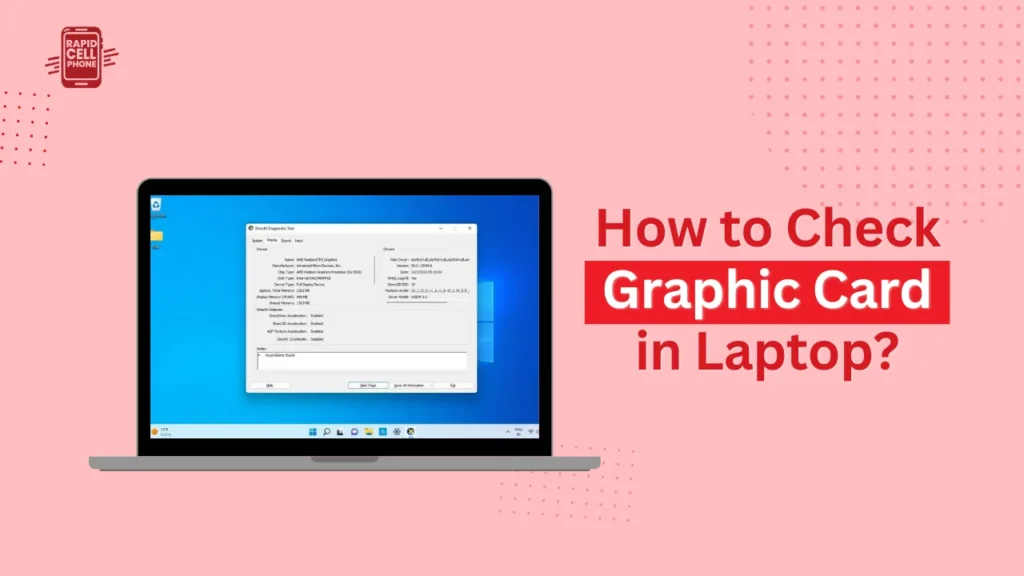
The next utility that can be considered as a powerful and built in utility of windows is known as the DirectX Diagnostic tool. This is normally invoked as dxdiag.
Step-by-Step Process
Click Windows + R to enter the Run dialog box. Type dxdiag and press Enter. After opening the DirectX Diagnostic Tool, you will need to select the Display tab.
Here you will find details of GPU such as:
- Graphics card name
- Manufacturer
- Chip type
- Display memory (VRAM)
- Driver version
- DirectX support
It is a very handy tool when it comes to troubleshooting graphics issues or seeing whether games and applications are compatible.
How to Check Graphics Card Through Windows Settings
The windows settings can also give us an easy access to the information about the GPUs.
Tap Settings, System, and Display. Click on Advanced display settings and scroll down. There, select Display adapter properties.
A new window will open with the name of your graphics card and explicit details of the adapter type and memory. Although this approach is less technologically rich than dxdiag, it is straightforward and easy to use by novices.
Using System Information to View GPU Details
The System Information tool is useful to users who wish to be more technical.
Click Windows + R, enter msinfo32 and press Enter. In the left-hand panel, open Components and choose Display.
This section includes details that are detailed such as:
- Adapter name
- Adapter RAM
- Driver version
- Installed drivers
- Resolution
This tool is the best choice when the user requires a more comprehensive hardware information than the name of the GPU.
How to Identify a Dedicated Graphics Card in Laptop
Hybrid graphics technology is present in many modern laptops. This implies that the system automatically alternates between combined and dedicated GPUs to adjust between performance and battery performance.
To verify your dedicated graphics card:
Open Device manager and check display adapters. The discrete graphics card will typically be marked distinctly either NVIDIA GeForce or AMD Radeon RX (non-integrated version).
This can also be validated in Task Manager under the Performance tab. When there are two GPUs displayed, then your dedicated graphics card is the more powerful model with more dedicated memory.
Why Does My Laptop Show Two GPUs?
In case you have two GPUs on the list, there is nothing to be concerned about. This is natural in laptops that are made to be performance efficient.
The built-in graphics card copes with minor functions such as watching video or browsing. The dedicated GPU is used when it is time to do something demanding like gameplay or rendering.
This switching system enhances the life of the battery and is also robust in its performance when required.
How to Check Graphics Card Memory (VRAM)
Video Random Access Memory (VRAM) is essential to gaming and design performance. An increase in VRAM enables the ability to manipulate high-resolution textures and complicated graphics with ease.
To monitor VRAM, open Task Manager, visit the Performance tab, and choose your GPU. There will be both committed and shared memory values.
Instead, open dxdiag and verify Display Memory under the Display tab.
In case you work with gaming, video editing, and 3D design, VRAM is also important to check as much as the GPU model.
What to Do If Your Graphics Card Is Not Showing
In case your GPU is not visible in the Device Manager or the Task Manager it might be a problem with drivers.
To begin with, restart your laptop. In case the problem does not go away, do a windows update or download the newest drivers through the official site of your graphics card company.
In uncommon situations, the GPU might be turned off in the BIOS configurations or it might be a hardware malfunction. Provided that driver updates are not able to eliminate the problem, professional inspection might become necessary.
How to Check Graphic Card in Windows 11 Laptop
It follows almost the same procedure as Windows 10. To see detailed information of the GPU, you can open Task Manager and go to the Performance tab and then go to GPU under the performance tab.
Display settings and advanced display properties can also be accessed to check adapter properties.
Windows 11 does not change the pattern of identifying the GPU, and all of the above-described methods are applicable.
Final Thoughts
Learning how to check graphic card in laptop is important to optimize performance and compatibility of the software. Windows has several useful tools to determine your GPU, be it Task Manager, Device Manager, dxdiag, or System Information.
Regardless of whether you are a gamer, content creator, student, or business professional, information on how to check graphic card in Windows 10 laptop or how to check dedicated graphic card in laptop will assist you in making informed decisions when it comes to changes, software installation, and troubleshooting.
Now spend a few minutes verifying your GPU with one of the above methods. It is a little step that can save significant compatibility problems in the future.
FAQs: How to Check Graphic Card in Laptop
How do I quickly check graphic card in laptop?
Open Task Manager by hitting Ctrl + Shift + Esc, select the Performance tab, and clicking on GPU. Your graphics card name and memory details will be shown immediately.
How to check graphic card in Windows 10 laptop?
Right-click the Start button and then open the Device Manager and then expand Display adapters. There will be a list of your graphics card model.
How to check dedicated graphic card in laptop?
Open Device Manager and, under Display adapters. When they have two GPUs, the one named either NVIDIA GeForce or AMD Radeon (RX series) tends to be the dedicated graphics card.
Why does my laptop show two graphics cards?
A lot of laptops have embedded and dedicated GPUs. They are automatically swapped by the system in a bid to maintain a balance between performance and battery life.
How do I check my graphics card memory (VRAM)?
Open Task Manager → Performance → GPU. On the right hand side you will see shared and dedicated memory details.
0 Comments