
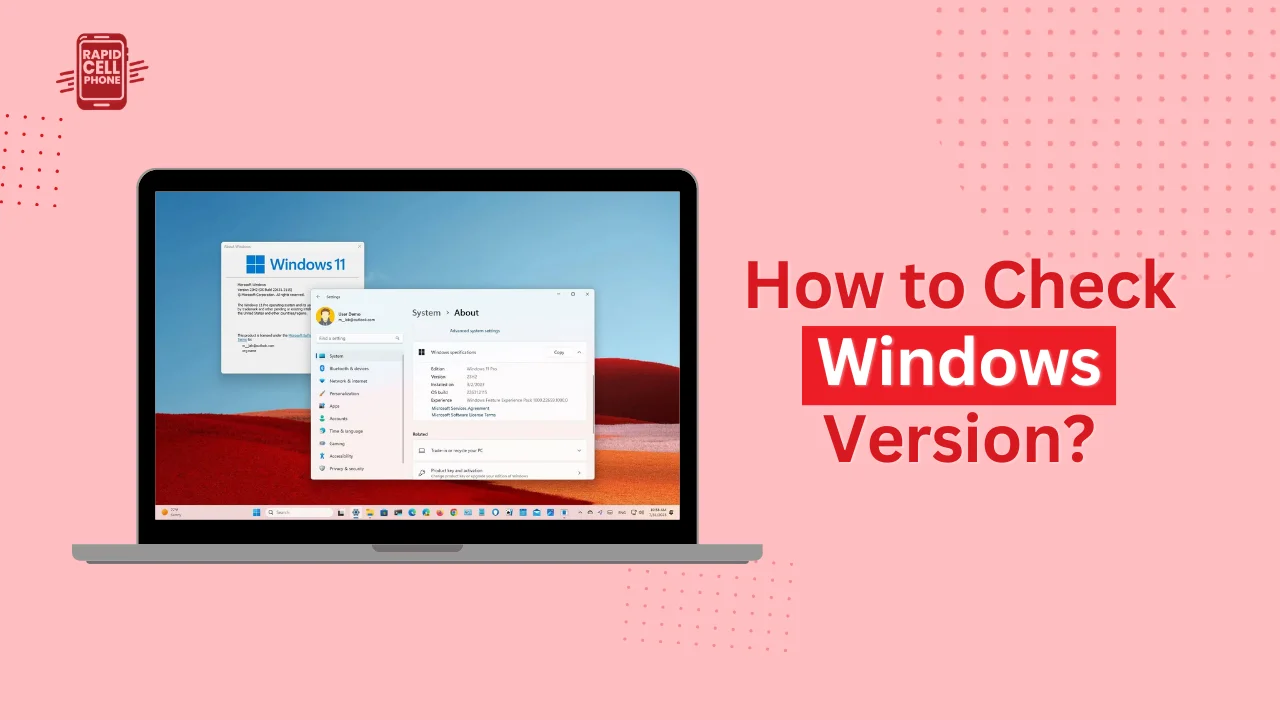

It is important to know how to check Windows version to maintain your computer and to make sure your software works with it. Most programs, drivers and updates are version specific and unless you are aware of your version you run the risk of either installation failure or performance problems.
It is easy, regardless of whether you are on a desktop computer or a mobile device. The guide clarifies how to check laptop Windows version and how to check Windows version on laptop or PC using easy and easy to understand procedures.
Table of Contents
Why Knowing Your Windows Version Is Important
It is beneficial to learn why this information is important before learning how to check Windows version. Depending on your Windows version you will be able to do what features you can and which updates are available to you and which applications will work with your computer.
Software installation is one of the most frequent causes of checking your Windows version. A large number of modern programs only operate in Windows 10 or Windows 11, and Windows 7 and 8 might not work correctly. To ensure no compatibility problems, find out your windows version first.
Troubleshooting is another critical reason. Technical support teams typically want to know what version of windows you are using and then offer solutions. This will enable them to provide instructions that fit your system configuration.
Updating your system is also a good idea and checking your windows version. In case your computer is operating on an aged version, you might be required to update your system to enhance efficiency and security.
How to Check Windows Version Using Settings
The simplest and most trustworthy means to know how to check Windows version is the Windows Settings menu. The approach is compatible with Windows 10 and Windows 11 and offers the most detailed information.
Step-by-Step Instructions
First press the windows key + I to open the Settings menu on your keyboard. After opening the Settings window, choose System in the list of options. Then, on the left sidebar, scroll/ click About.
Within the About section, scroll down until you see Windows Specifications. This is where all the significant information about your windows installation is held.
You can look at your windows version, version number and operating system build.
Understanding Windows Specifications
In the process of determining your version of windows using settings, you will find a number of information displaying your system.
The Edition section informs you of the version of windows that you are using, whether it is Home, Pro, or Enterprise. This assists in deciding what features are present in your device.
The Version field displays the significant Windows update that is running on your computer. This figure is particularly noteworthy during the installation of software or drivers.
The OS Build number is the technical build of the Windows. This information is commonly used by support teams to diagnose problems in a system.
The System Type section will inform you of the version of windows you are using that is 32-bit or 64-bit. The majority of contemporary computers are 64 bit.
This Settings approach is the easiest to use among most users to know how to check Windows version since it displays all the necessary information in a single location.
How to Check Windows Version Using the Winver Command
Winver command is another easy method to know how to check Windows version on laptop or desktop. This is quicker than going through the settings and is applicable on almost any Windows computer.
Using the Winver Tool
First, press Windows key R on your keyboard. This opens the Run dialog box. In the text box, enter winver and hit Enter.
There will be a little window that will show your Windows version. This window contains your windows version, version number and OS build.
Since this is the only method that uses a single command, it is usually regarded as the quickest method to verify Windows version.
When to Use the Winver Method
Winver technique is best applied when you require speedy information without using numerous menus. IT professionals and support technicians are the widely used users of it who require having the system information as fast as possible.
It can also be useful when you have a non-responsive Settings menu or one that is unresponsive and requires a lot of time to open. Even with slower machines, the Winver command will most likely launch immediately.
This is typically the most appropriate method to be used by users who want to know how to check Windows version on laptop.
How to Check Windows Version Using System Information
The System Information tool is another trusted method of how to check Windows version. This approach offers additional technical information as compared to the others and can be useful when you require full system descriptions.
Opening System Information
First, open the Windows search tool and enter System Information. Once the program is visible in the results, it should be clicked to open.
The System Information window contains information about your computer in detail. At the very beginning of the list, there will be entries titled OS Name and Version.
These fields are a good indicator of the version of Windows that is installed on your computer.
When to Use System Information
System Information comes in particularly handy when you require more detailed system information. Beside your windows version, it will display processor, memory and hardware specifications.
The approach is useful in higher-level troubleshooting and technical support scenarios in which specific details are needed.
How to Check Laptop Windows Version
The question of how to check laptop Windows version is something that many users particularly desire to know but the steps to follow are the same as those in checking a desktop computer. Windows operates on both laptops and PCs.
Checking Windows Version on Any Laptop
To verify the version of your version on a laptop, open the settings with windows + I, then go to the System and to the About section. Move to the windows specifications section and you can see your version.
This technique can be applied to almost all brands of laptops such as HP, Dell, Lenovo, ASUS, and Acer.
When your question is, how to check laptop Windows version, the simplest and most trusted way to go would be settings.
How to Check Windows Version on Laptop Quickly
There are occasions when you might be required to understand how to check Windows version on laptop within seconds. Winver command is the quickest in such situations.
Fastest Method
Select Windows + R, type winver, and press enter. A window will open with your version and build number of Windows.
The approach does not require maneuvering through settings, and it is perfect when you require fast data.
This method is commonly suggested as a quick version check because it is compatible with almost all windows computers.
How to Identify Windows 10 or Windows 11
Others require only to check whether their computer has either Windows 10 or Windows 11.
Identifying Through Settings
It is best done by opening settings and going to About section under System. The Windows Specifications section explicitly shows whether you are on Windows 10 or windows 11.
Identifying by Appearance
The interface may sometimes indicate your version of windows.
Windows 11 is characterized by taskbar icons that are usually centered and a contemporary style with rounded edges of windows. Windows 10 tends to possess taskbar icons dispersed on the left and a more classic look.
Even though it is possible to give hints to visual differences, the most precise method is checking through Settings.
How to Check 32-Bit or 64-Bit Windows Version
It is important to know your system is 32-bit or 64-bit when you are installing specific programs or drivers.
Finding System Type
Go to Open Settings and the About section under System. System Type is found in the Device Specifications section.
In this section, you will specify whether your system is using a 32-bit or 64-bit operating system. Windows with 64-bit support are the operating systems of most current computers due to its ability to support more memory and perform better.
Common Issues When Checking Windows Version
Even though the process of verifying your Windows version is generally easy, some users have slight difficulties when doing so.
Settings Not Opening
In case the Settings application fails to start, a restart will also help in most cases. You can use the Winver command instead in case the problem persists.
Winver method is independent of settings and usually the best alternative.
Winver Not Working
Winver command is occasionally unresponsive. In the event of this, the System Information tool offers an alternative reliable option.
You can use Windows search to open System Information in order to locate your Windows version when other tools do not work.
Conclusion
Knowing how to check Windows version is a basic requirement useful skills to any computer user. It is always good to know your version as this allows you to be certain that your software will be compatible with the new version, to simplify issues that may arise during troubleshooting and to keep your system current.
The Settings method is the most comprehensive and fits best with the majority of users. Winver command is the quickest to verify your version and System Information gives detailed information in a technical form.
Having known how to check laptop Windows version and how to check Windows version on laptop, you can easily find the information on your system at any time required.
Frequently Asked Questions
How do I check my Windows version?
To view your version and edition, press Windows + I, and in the System window, select About.
How to check laptop Windows version?
Click on open settings, then on System, and then on About. Windows version will be shown under Windows Specifications.
How do I check Windows version using Run?
To know your windows version immediately press Windows + R, type winver and press Enter.
How do I know if I have Windows 10 or Windows 11?
Go through the Open Settings menu then go to System, and About.
How do I check if Windows is 32-bit or 64-bit?
Go to settings/system/about and find system type in the device specifications.
0 Comments