
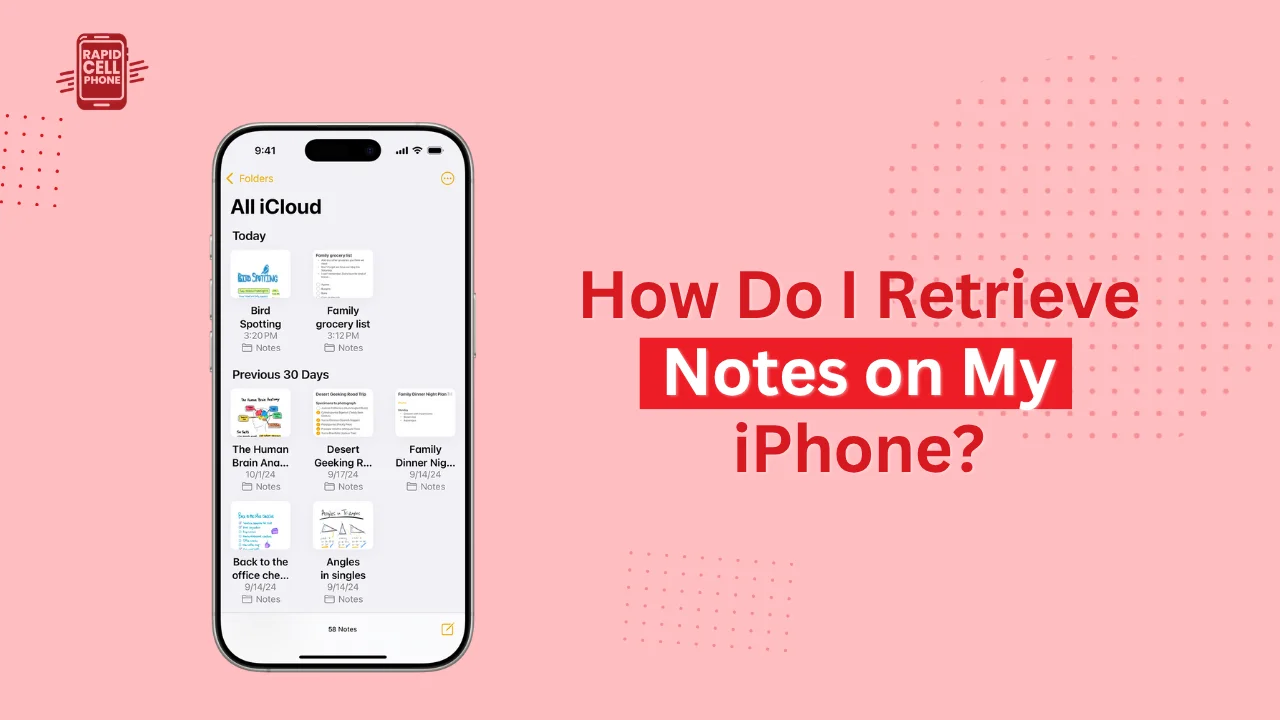

It can be stressful to lose some important notes on your iPhone. It may be a work-related memo, a personal journal entry, or a shopping list, the loss of notes may frustrate and lead to panic. When you are wondering how do I retrieve notes on my iPhone?, this tutorial will show you how to recover your lost notes, step-by-step and some prevention tips to avoid losing your data again.
Table of Contents
Why Notes Disappear on Your iPhone
It is good to know some reasons why notes may be lost before trying to retrieve them. Your iPhone notes might be lost due to various reasons. One of the most frequent causes is accidental deletion. You could have accidentally swiped away a note or cleared a folder. In some cases, notes can be absent due to problems with iCloud syncing. You can also lose the content to the cloud but it will still be there in the cloud as long as your device is not signed in with the right Apple ID, or Notes is not turned on.
The other common cause is that notes can be saved within other accounts, i.e. Gmail, Yahoo, or other email providers, and the Notes toggle can be turned off. iOS bugs or updates can also cause notes to disappear briefly or lead to syncing issues. Lastly, it is possible that the notes have been deleted and are in the recently deleted folder, which can be retrieved in 30 days.
It is imperative to understand why notes are disappearing since this will dictate the best mode of recovery.
Quick Checks to Locate Missing Notes
It is not always that lost notes are lost, sometimes they are simply hidden. Very few checks can save you a lot of time. The first step is to use the search option in the Notes application, but ensure that the search option is set to All Accounts because the notes can belong to various accounts.
Next, ensure that Notes syncing is on. Got to settings, tap your name at the top, scroll to iCloud and make sure the Notes button is on. You should also make sure to go through all your folders, such as on my iphone or any email accounts.
Sometimes, notes can be saved in unintended folders and so they can vanish. You can also make sure that you have the Notes switch on all email accounts on your device. Go to Settings and choose Mail then Accounts, the account, and ensure that Notes is turned on. These can in many cases fix the problem without full recovery processes.
How Do I Retrieve Notes on My iPhone? Step-by-Step Methods
When the quick checks do not assist, then it is time to proceed to proven recovery techniques. You can recover lost notes on your iPhone in several ways that can be as easy as in-app recovery or as complex as using backups.
Recover from the Recently Deleted Folder
The Notes app automatically moves deleted notes to the Recently deleted folder which lasts 30 days. This can be the fastest method of restoring deleted material. Open the Notes app, navigate to Folders, and choose Recently Deleted. Tap Edit and select the notes that you would like to restore and relocate them to your favorite folder. Note that shared notes might not show up within this folder.
Restore Notes from iCloud
When the iCloud syncing is on, then you can still find your lost notes in the cloud. Access Settings to [Your Name] to iCloud and switch on Notes in case it is not already. You may as well log in to iCloud.com and navigate to Recently Deleted in the Notes. This is particularly effective when your notes were deleted by mistake on your iPhone but they are still in the cloud.
Restore from an iCloud Backup
To restore notes that were deleted from your device permanently and those in the Recently Deleted folder, you can use an iCloud backup. Go to Settings General Transfer or Reset iPhone Erase All Content and Settings, then select Restore iCloud Backup in the process of setting up. Take care to choose a backup that has your lost notes. Always remember that when you are restoring your files by using a backup, any existing data will be overwritten and it is always best to save a backup before going ahead.
Restore from iTunes or Finder Backup
In case you back up your iPhone to the computer frequently, iTunes (on Windows) or Finder (on Mac) can restore lost notes. I plug this iPhone to your computer, open iTunes or Finder, select your iPhone, and choose Restore Backup. Select the backup where you have lost the notes, and take the instructions given on the screen. This will make sure that you can access notes even when not in iCloud.
Use Third-Party Recovery Tools
Third-party data recovery tools can assist in more complex situations. Applications such as AnyRecover iOS Data Recovery will enable you to search your iPhone and choose which of your deleted notes you wish to recover or not. Although these tools can be valuable, one should be careful to use reputable software to prevent privacy or security breaches.
Check Other Accounts and Devices
In some cases, the notes may be associated with a different email address or Apple ID. log in to other accounts that might have saved notes and verify other devices sharing the same iCloud account. There is a possibility that the missing notes are elsewhere.
Tips to Prevent Future Note Loss
It is easier to recover notes when preventive measures are taken. Always make sure to back up your iPhone to iCloud or a computer and make sure to include Notes within the backup. Ensure that Notes are synced in all accounts to ensure that information is not lost when there are syncing errors.
Think about making specific folders with valuable notes and categorizing them properly. Critical notes can be further safeguarded by exporting or sending email. In the Recently Deleted folder, can you regularly review your deleted notes and save the ones you want to save before they are destroyed forever. On shared notes, note that deleting a note that is not yours does not necessarily go to Recently Deleted so you must take caution when sharing with others.
Conclusion
It is completely possible to recover notes on your iPhone by doing the correct steps. Whether it is the Recently Deleted folder, iCloud sync, restoring a backup or using other third-party recovery tools, there is one which will fit each scenario. Preventive measures like, but not limited to, empowering regular backups, cross-account syncing of Notes, and exporting valuable content, will help keep your data secure in the future. With this guide, you can retrieve lost notes in a short time and save yourself against future loss of data.
FAQs About How Do I Retrieve Notes on My iPhone?
Can I recover notes older than 30 days?
Older than 30 days old The older the notes are, the more they can be restored via iCloud or iTunes backup, or using professional recovery software. Permanently deleted notes are not addressed by default recovery methods.
What if I switched Apple IDs and cannot see my notes?
Use your old Apple ID or apply backups to your old Apple ID to log to your lost notes.
What should I do if my notes folder disappeared entirely?
Switch settings to check accounts, switch Notes off and on and browse through all folders, such as On My iphone and email-linked folders.
Is it possible to recover locked notes?
The locked notes will not appear in the search results and you will have to go to the locked folder manually to access them.
Will restoring from a backup erase current data?
Yes, when you restore using a backup, the existing information in your iPhone will be deleted, therefore, always be sure to back up your phone first.
ck up your phone first.
0 Comments