

Editing pictures on the iPhone is no longer just a question of basic filters or basic picture cropping. Apple has transformed the in-built Photos application into a robust photo editing tool that can significantly enhance the quality of images using only a few swipes. You may be asking yourself how to edit photos through iPhone without any complex software, so this time, we are going to take you through all this step by step.
You will learn how to edit photos on iPhone, but make them look natural and professional at the same time, starting with the simplest of lighting corrections up to the more advanced editing techniques.
Table of Contents
Why You Should Edit Photos on iPhone Instead of Using a Computer
The pictures in a modern iPhone are high-resolution and details are astonishingly sharp, but the best photographs are those that have been edited. In the iPhone Photos application, you can fix bad lighting, improve colors, and refine composition in real-time.
Non-destructive editing is another strength. You can easily go back and undo every change you have made and this is a plus to that you can do any experiment you wish without the fear of destroying your original image. Your edited photos are available in all Apple devices because everything is synchronized using iCloud.
To the majority of users, learning how to edit photographs on iPhone will remove desktop photo editing software completely.
What to Do Before Editing Photos on iPhone
Preparation is more important before you sit down to start editing. A photo that is well shot needs few edits and appears more natural after all.
Always take photos when there is good light available. Natural light is more accurate in color and less noisy. The grid option in your camera setting enables you to retain balance and straight horizons.
When your iPhone has RAW or ProRAW, you have a greater degree of flexibility when processing a photo on the iPhone, particularly when working with highlight/shadow manipulation.
How to Edit Photos on iPhone Using the Photos App
Editing of iPhones photos starts at the Photos app. Apple has made it easy enough to be used by beginner users, but also has advanced settings for advanced users.
Opening a Photo and Entering Edit Mode
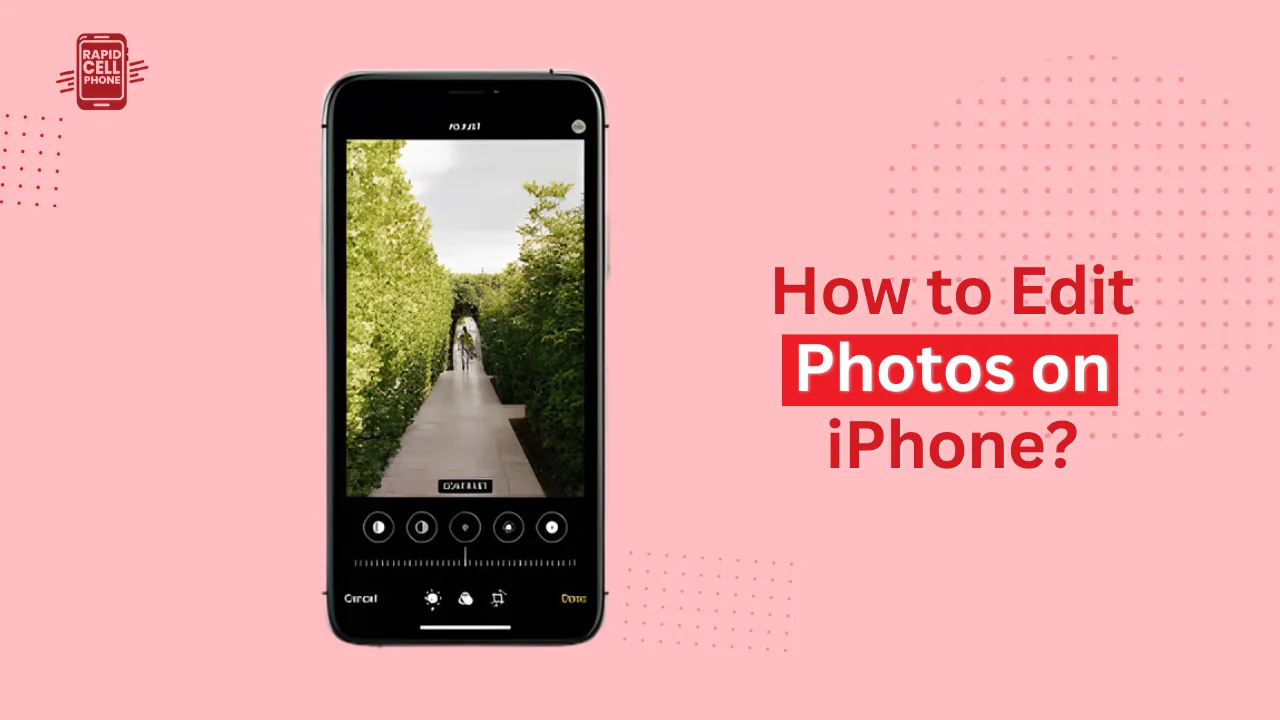
On the Photos application, choose the picture you wish to edit. Click on the Edit button that is in the upper-right corner. Now you will get editing tools on the bottom of the screen.
This is where you will spend most of your time learning how to edit photos on iPhone.
Adjusting Exposure and Lighting for Better Results
The basis of great photo editing is lighting. Some of the tools found in the Adjust section include Exposure, Brilliance, Highlights, Shadows, Brightness, and Contrast. The general brightness of the image is controlled by exposure.
Highlights can assist in retrieving the information in bright spots whereas Shadows can assist in revealing information concealed in darker sections of the photo. Brilliance is especially helpful as it is smart enough to enhance brightness and contrast without making it too bright.
Small, balanced changes are the key to creating professional-looking iPhone photo editing instead of extreme changes.
Improving Colors Without Making Photos Look Fake
It is the color correction where the majority of people over-edit their photos. The iPhone Photos app offers applications, such as Saturation, Vibrance, Warmth and Tint.
Saturation intensifies all colors, whereas vibrance highlights the dull ones. Vibrance is generally preferable with natural edits. The warmth changes the color temperature so that the photos can either be cooler or warmer, depending on the mood you desire.
These are the tools necessary in learning on how to improve photos on iPhone in social media or personal use.
Using Filters the Right Way on iPhone
The popularity of filters is that they immediately alter the appearance of a photograph. iPhone has a set of in-built filters, including Vivid, Dramatic, Noir, and Silvertone. Rather than using filters with full intensity, decrease the intensity using the slider.
The use of subtle filters does not overwhelm the picture. Manual editing should go hand in hand with filters, rather than be substituted. This balance is important to learn to master the process of editing photos in iPhone on a professional level.
Cropping, Rotating, and Straightening Images
Cropping assists in enhancing the composition by eliminating the distractions and concentrating on the subject. Click on the Crop button to adjust your image or fix curved lines.
Straighten tool comes in handy especially with landscape and architectural photography. There are also preset aspect ratios in iPhone and with these, it is simple to prepare a picture to fit Instagram, wallpapers, or prints.
Good cropping can even make a huge difference in your photo and you need not touch any of the settings.
Using Markup Tools for Text and Annotations
Mark-up apps enable you to draw, add text, highlight information or put your signature on your photos. This attribute can be applied to tutorials, business pictures, and social media content. Colors, fonts, and line thickness can be adjusted to your preferences.
Although Markup does not focus on artistic photo enhancement, it can provide a functional value to edited images.
Reverting and Comparing Edits Anytime
The ability to undo at any point is one of the greatest strengths of iPhone photo editing. In case you are not pleased with the end product, tap Revert in order to recover the original photo.
When editing, you can also compare the edited image and the original by tapping and holding the image. This can assist you in evaluating whether you have made any refinements that make the photo better.
Advanced iPhone Photo Editing Tips for Better Quality
When you are familiar with the simple edits, you can go to an advanced stage and make your photos even better.
The application of contrast gives the brush a greater depth and clarity without destroying shadows. Reducing the highlights and increasing the shadows a bit will usually result in a balanced, cinematic appearance.
In the later models, Photographic Styles enable you to make all the photos look the same with all the skin tones preserved. These are non-destructive and can be adjusted, thus suitable in the long term.
You are also able to copy edits made on a single photo and paste them on other photos, this is effective in saving time when doing edits on several photos of the same shoot.
Should You Use Third-Party Apps for iPhone Photo Editing?
Although the Photos app is strong, there are those users who desire more control. The features of the apps (Lightroom Mobile, Snapseed, VSCO) include selective editing, professional presets, and detailed color grading.
Lightroom is the best RAW photo editor on iPhone, Snapseed provides accurate local controls, and VSCO is about aesthetic filters. The apps are effective as supplements but not replacements to the inbuilt editor.
Saving, Exporting, and Sharing Edited Photos
Your photo is automatically saved in full quality after editing. You may post it on social networks, messengers or email.
iCloud Photos is an automatic synchronization of your devices with Apple. When you intend to use photos on websites or printing, you can export them in their original resolution and it will not ruin the quality.
Knowing this last step will make your photo editing work on iPhones look fantastic anywhere.
Final Thoughts
Knowing how to edit photos on iPhone allows you to have full control on being creative with your pictures without the assistance of professional tools. The Photos app provided by Apple has not only simple fixes, but also advanced additions, all presented in a straightforward interface.
Great editing is all about being restrained. Minor, considerate changes nearly always seem superior to heavy edits. It will always make your photos clean, brighter and more professional with practice.
FAQs About How to Edit Photos on iPhone
How do I edit photos on iPhone without an app?
The Photos app lets you edit photos on iPhone without any third-party application, tapping the Edit button, and using the tools such as exposure, brightness, contrast, filters, cropping and straightening. Any edits are not deletable and they can be reversed at any time.
Is the iPhone Photos app good enough for professional editing?
For most users, yes. The iPhone Photos application offers advanced lighting, color correction, filters and composition features. Although professional photographers might want to use a more detailed color grading app, such as Lightroom, the in-built editor is robust enough to do high-quality and social media-ready images.
How can I make my iPhone photos look professional?
To create professional iPhone pictures, pay attention to minor details. Proper exposure initially, soften highlights, raise shadows minimally, and adjust colors with vibrance rather than saturation. Apply filters sparingly and use crop to enhance composition. Do not over-edit to make results natural.
Can I undo or revert edits on iPhone photos?
Yes, it is possible to revert or undo edits. Tap Edit, and then use Revert to restore the original photo. This feature will operate even when the photo was edited days or weeks ago.
What is the best filter to use when editing photos on iPhone?
No single best filter exists and Vivid and Vivid Warm are quite popular when you want to use them to capture everyday photos. Noir is suited to black-and-white photography. The trick is to reduce the intensity of filters to make the photo not look too artificial.
0 Comments