

Switching the area on your iPhone can unlock new applications, various content in the App Store, local charges, and services that might not be offered in your present area. Regardless of how to change region in iPhone or just desire to use some apps that are exclusive to the region, it is important to know how to change region in iPhone. This is a step-by-step guide through the process, requirements required by Apple, and the frequent mistakes people make during the process.
Apple has tightened its region-switching rules in 2025. Due to this, taking the right steps- and being aware of Apple limitations- is more crucial than ever. We shall see what you should know.
Table of Contents
Understanding Why iPhone Region Matters
Depending on where you are in the world, you will find in the App Store what you are able to buy, the payment options, how the money is displayed, tax, and even whether apps and subscriptions are available. Once you change countries, the Apple system will require confirming the mode of payment, billing address, and subscriptions before you can continue. That is why numerous users can make a mistake when they miss one of the necessary steps.
The difference between device region and Apple ID country/region is also present. The device area influences language, formats, and local behavior of apps. However, your account is associated with the Apple ID section, which manages the contents of the App Store and subscriptions. In this guide, the main emphasis is put on the Apple ID section due to the fact that this is what users intend to do when they search how to change region in iPhone.
Before You Change Your iPhone Region
To change a region, Apple makes the user perform some prerequisites. When any of these is left incomplete, the option of Country/Region will not appear or display errors.
Ensuring You Have Zero Store Credit
The region change will not occur when your Apple ID still has some credit. A few cents will stand in the way. With credit in your hands, you have to spend the full amount before relocating to a new area. This is an operation that users overlook and they consistently end up in errors.
Canceling Active Subscriptions
Apple ID-related subscriptions (including Apple Music, iCloud+, Apple TV+, and subscriptions to third-party apps) should be canceled before switching the region. In addition to cancellation, you might also have to wait until the subscription period is over. It is not possible to change the region when any subscription is currently active, even when you cancel it a few minutes ago in Apple.
Leaving Family Sharing Groups
When you are a member of a Family Sharing group and your Apple ID is used, Apple prevents changes of the region to all members. You should either exit the group or seek the Family Organizer to alter their section of Apple ID region. This is the point where most users get stuck since they are not aware that Family Sharing has an impact on region settings.
Preparing a Valid Local Payment Method
Apple needs a payment system that aligns with the country billing system. To illustrate, when you move to the United States, you will be required to use a card and billing address that is based in the United States. In the absence of this, Apple will not finish updating the region. Apple does support the choice of None, which is not universal.
Understanding That App Availability Will Change
Applications, films, and other materials purchased in your home country might not be supported in the new one. Without such apps being in the new App Store they might either move out of your list of purchased apps or no longer be updated. This is a normal change and it relies on licensing agreements within each country.
How to Change Region in iPhone (Step-by-Step Guide)
The procedure of changing your iPhone region will always be the same, regardless of the version of iOS, though the names of the menus can vary slightly. This is the most suggested way by Apple Support, and it is the surest method.
Opening the Settings App
Start by unlocking your iPhone and tapping the Settings icon. All settings related to accounts and regions are handled here.
Accessing Your Apple ID
Your name will appear at the top of the Settings screen. Tap to open your Apple ID dashboard. This section manages your purchases, subscriptions, and personal data.
Navigating to Media & Purchases
Under the Apple ID menu, choose media and purchases. When a pop up comes up, select View Account. Apple can prompt you to unlock with Face ID, Touch ID or your password.
Opening the Country/Region Settings
Once you have gone into your account settings, you tap Country/Region. This screen shows your existing country of Apple ID. Tap Change Country or Region to continue.
Selecting a New Country
A complete list of countries will emerge. Select the area which you wish to change to. By choosing a different country, you are accepting the App Store Terms and Conditions of that country.
Accepting the Terms
Read over the words that are on your screen. Tap “Agree” to continue.
Entering Payment Details and Billing Address
Apple will now ask you to provide a valid payment method related to your chosen country. Fill out the card details, bill address and other necessary information. When done, tap Next to complete the change of region.
Refreshing the App Store
Once the setup is complete, close the App Store and open it again. The new region should now find its way in your content, currency and the apps you feature.
Changing Region Through a Computer (Alternative Method)
The iPhone has some users facing problems when changing regions without leaving the phone itself. In this case, Apple offers other ways out via the Apple ID site or desktop applications.
Using the Apple ID Website
Go to the Apple ID site and log in with your account details. Go to your Personal Information and then to the Country/Region section. In this section you will be able to choose your new country and change payment information.
Using the Mac App Store or iTunes on Windows
When using a Mac, you need to open the App Store, tap on your profile, and then on your account settings. There will be a Country/Region option that enables you to change regions. With iTunes, Windows users can do the same. This is particularly useful when the option is switched off on the iPhone.
Changing Device Region (For Formats Only)
To make a change such as changing currency symbols, date format or even local behavior of apps, you just need to change the device region, not the Apple ID region. This is far more straightforward and it does not impact your App Store content.
Updating Language & Region Settings
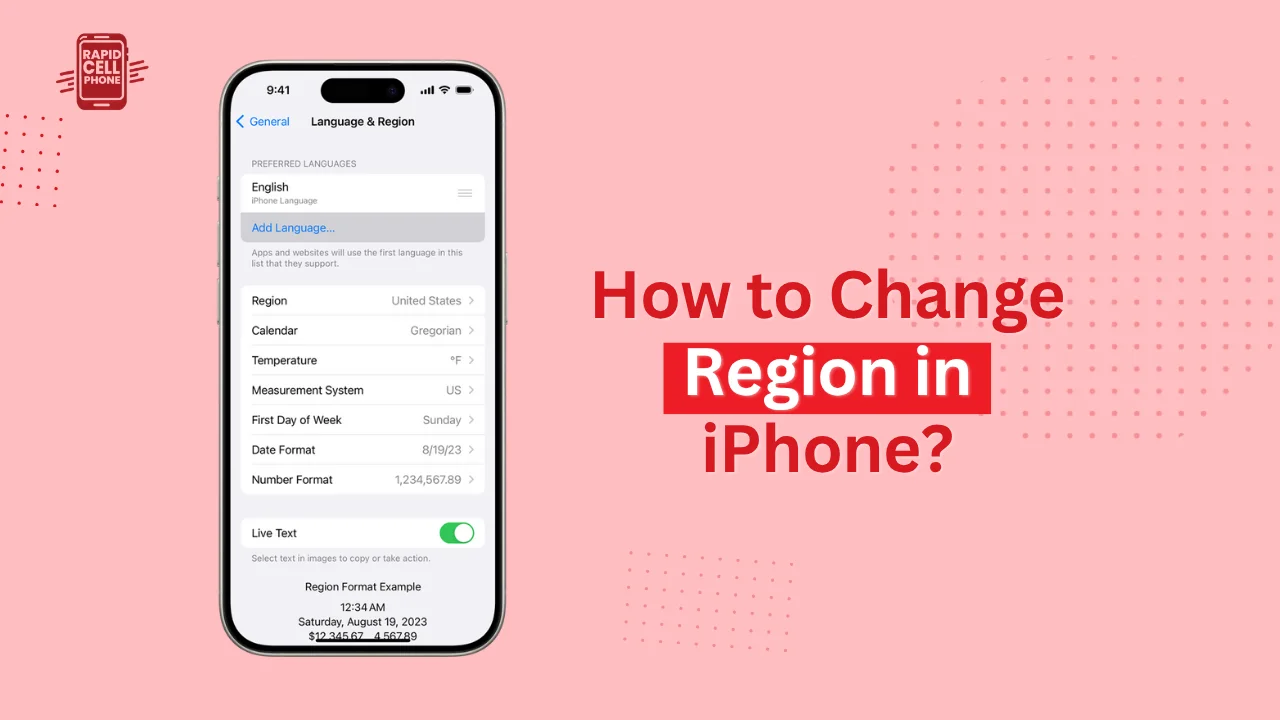
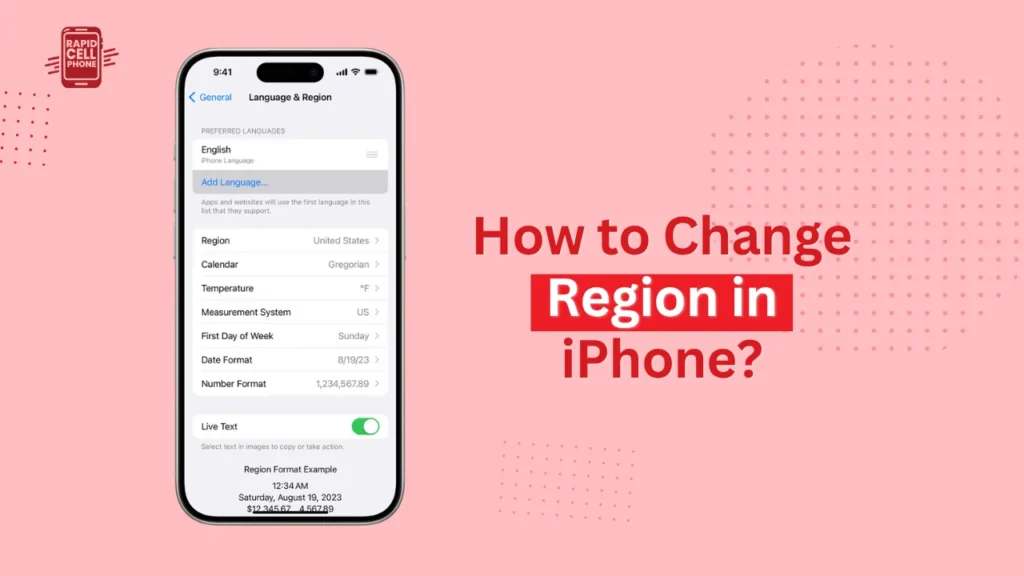
Tap on Open Settings, then on General and tap on Language and Region. Choose the new region in the list. This will refresh formats and localization preferences, but will not affect app availability.
What Happens After You Change Your iPhone Region
Switching Apple ID location is a significant modification, and various aspects can transform instantly.
App Store Content Adjustments
You will now see applications in your new country on the App Store. There are apps that you might have downloaded before but no longer show up in your library since they are not compatible in the new location.
Subscription Changes and Restrictions
Some of the subscriptions may not be available in the region you are moving to. Streaming services, e.g., are different in countries because of rights to licensing.
Billing, Taxes, and Pricing
In each country, there are different tax policies and costing frameworks. You will find that the prices of apps, taxes, and even the currency you use to purchase items will be different.
Troubleshooting Region Change Errors
Despite correctly performing all the steps, you can still make mistakes. They are generic and typically repairable.
Store Credit Balance Remaining
Apple will block the region change in case it sees credit left in your account. You have to use the whole balance and then again.
Active Subscriptions Still Running
Subscriptions are still active up to the conclusion of the billing cycle, despite cancellation. You have to wait till the cycle is complete and then change regions.
Invalid Payment Method Errors
This mistake occurs when the country being chosen is not equivalent with the card or billing address. This can be addressed by adding a local payment method.
Country/Region Option Not Appearing
Family Sharing, pending transactions, store credit, or active rentals are the reasons behind this issue. When these are fixed, the choice will re-emerge.
Region Reverting or Not Updating
The region can be returned to default in case of software incompatibility with your Apple ID settings on the iPhone. This can be resolved by switching through a computer or calling Apple Support.
Alternatives to Changing Your Apple ID Region
In some cases, the process of changing regions may be inconvenient or not necessary.
Creating a Second Apple ID
Most users will opt to create a second Apple ID that is exclusive to a different region, like the US, to have exclusive apps. This permits free access to both regions.
Using Device Region Only
In case you want to switch formats or languages, it is enough to update the device area and to avoid all the problems with Apple IDs.
Using Region-Specific Gift Cards
Some countries have an alternative, where you can redeem gift cards without having to give a local credit card. Nonetheless, this solution is narrow and cannot be found worldwide.
Final Thoughts
Changing your iPhone region is not a complicated task as long as you know what you need and do it in the right order. The trick here is to empty every subscription, open a valid payment method, and leave no store credit balance. When it is complete, your iphone will change to the new area, allowing it access to the local content, pricing, and services.
FAQs About How to Change Region in iPhone?
Can I change my iPhone region without a payment method?
No, in the majority of cases, Apple needs a valid payment method to be found that corresponds to the chosen country. There are only a few areas that you can get away without one.
Will changing my region remove my apps?
Programs that are not accessible in your new country can vanish or lose updates. Their stay is solely dependent on availability of the app in the country.
Why can’t I change my Apple ID country?
Active subscriptions, outstanding store credit, Family Sharing limitations, and outstanding payments are the most frequent reasons. All this needs to be sorted out first.
Does changing the device region affect the App Store?
No. System formats are only influenced by the device region settings. Apple ID country settings control your App Store region.
0 Comments