

Pop-ups can be considered a nuisance, however, it plays a significant role on numerous websites. You might require them on login screens, confirmations of payments, internet banking or filling of government and business forms. Since iPhones usually prevent most pop-ups by default, as a security measure, users occasionally experience problems with a site that requires one to fulfill a task.
This guide will also tell you how to unblock pop ups on iPhone both in Chrome and Safari and why you still find some pop ups not appearing as well as how you can allow pop ups to appear safely without endangering the security of your device.
Table of Contents
Quick Steps to Allow Pop Ups on iPhone
In case you are in a hurry, pop-ups can be unblocked in the shortest possible time:
Safari Quick Steps
Go to Safari, open the Settings, then Block Pop-ups, and put the toggle off.
Chrome Quick Steps
Open the Chrome app, then tap the menu (⋯), then Settings, then Site Settings, and then Pop-ups and switch the option to Allow. When these settings have been changed, reload the site requiring the pop-up.
How to Allow Pop Ups in Safari on iPhone
The most popular browser on iPhones is Safari, and lots of applications utilize its internal browser engine. Due to this, enabling pop-ups in Safari can address pop-up problems in other apps too.
Step 1: Open iPhone Settings
Start with opening your phone and the Settings application scrolling down the list until Safari, the default browser on Apple, is found. The settings of Safari do not reflect on other apps and thus you need to manipulate the pop-up settings directly within this menu.
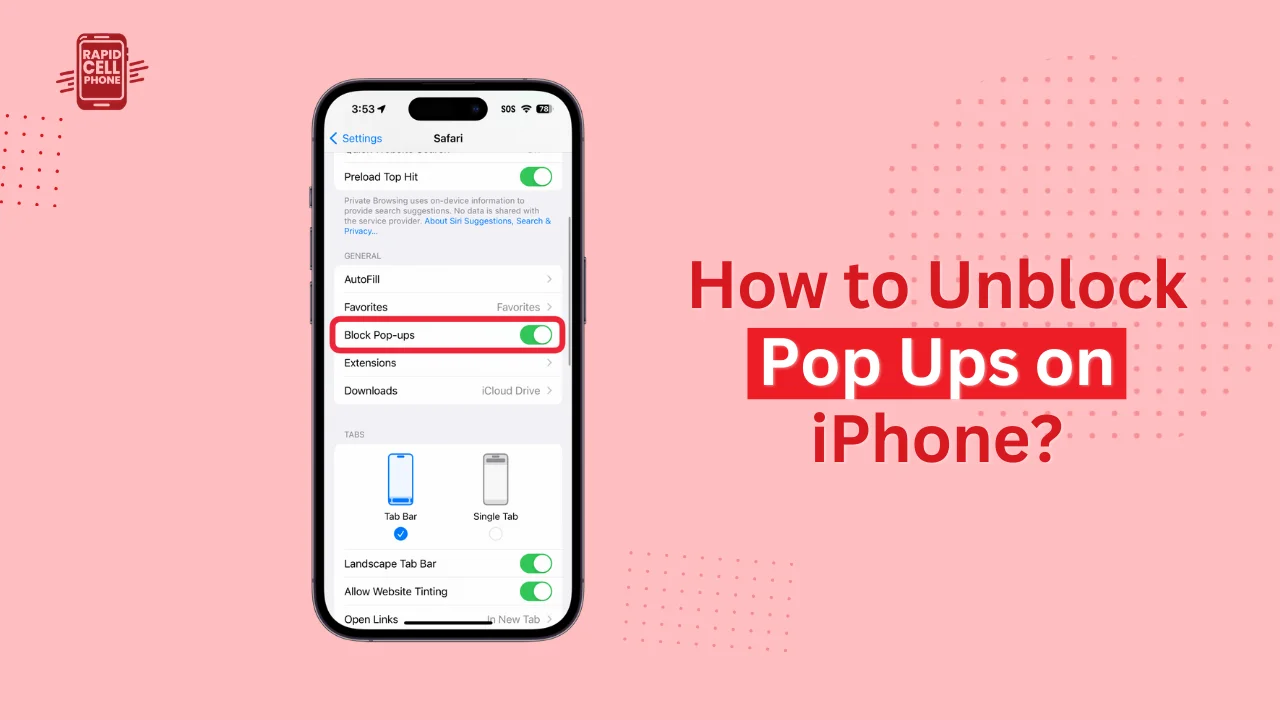
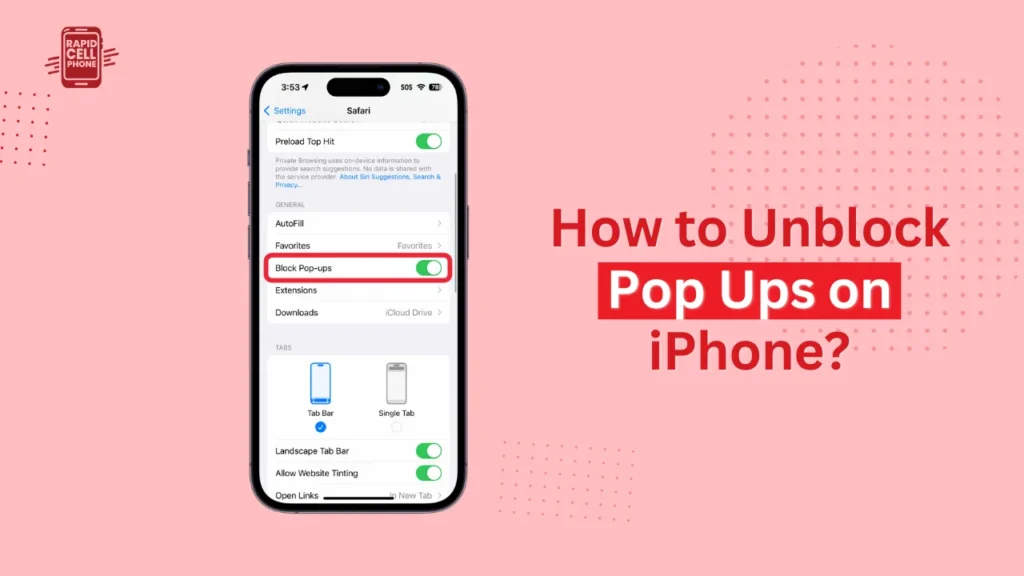
Step 2: Turn Off “Block Pop-ups”
When you are within Safari environments, scroll until you find the section that contains the option of Block Pop-ups.
This is a switch that lets you enable or disable all pop-ups on all sites that you visit. In order to permit pop ups, one has to switch the toggle down. After being disabled, Safari will no longer automatically block pop-ups.
Since this is a global setting, disabling it will impact every site. It does not support pop-ups on a per-site basis.
Step 3: Reload or Reopen the Website
Once the block option is disabled, go back to Safari, and reopen the site that needed a pop-up. Most of the time it is just necessary to reload the tab. But even after this the pop-up is not showing, then close the Safari all the way through the app switcher and restart it. Other sites need to refresh the page as previously the pop-up blocker was activated.
How to Allow Pop Ups in Chrome on iPhone
Chrome is also a favorite browser among individuals who cross-synchronize across different devices. In comparison to Safari, Chrome has different pop- up settings that would have to be altered within the Chrome application itself.
Step 1: Open the Chrome Menu
Launch the Chrome app. Tap the three dots (⋯) in the lower or upper corner (depending on your Chrome version) to open the menu. Select Settings as one of the menu options.
Step 2: Navigate to Site Settings
In Settings, scroll down until you reach either Content Settings or Site Settings. Chrome occasionally changes its interface, which means that the specific wording can differ, yet both choices will take the user to the same location.
Within the Site Settings, find the Pop-ups section.
Step 3: Set Pop-Ups to “Allow”
When you open the Pop-ups menu, you will encounter an option that will enable you to select whether you want to block or permit the pop-ups. Change this setting to Allow.
Once the setting has been updated, reopen or refresh the resulting site that needed the pop-up. To guarantee that the pop-up does appear, chrome might also have to be closed and re-opened.
Why Some Websites Require Pop-Ups
Though many websites consider pop-ups to be a type of advertisement, a significant portion actually requires them as vital operations. Pop-up windows are used by some banks to enable secure logins. They are used as a means by online stores to facilitate payment transactions via gateway payment systems such as Stripe or PayPal.
Forms, as well as verification pages and file downloads, are often opened in new windows on government websites. These actions might fail when your pop-up blocker is turned on. This is what can make it useful to permit pop-ups in the short term when one has to reach trustworthy services like banks, online courses, government portals, exam registration systems, and some business dashboards.
Troubleshooting: Pop-Ups Still Not Working on iPhone?
Even when the blocker is switched off, sometimes pop-ups do not appear. This normally occurs because of web scripts, browsers caches, or in-built iOS firewalls.
Pop-Up Is Actually an Overlay
All pop-ups are not pop-up windows. Most websites have overlays (i.e. cookie notification, sign-up box, newsletter form, ad) appearing on top of the page, rather than opening a new window. Pop-up blocking does not disable these.
In case of overlays on your screen, refresh, change to a Reader Mode (where possible) or just turn the overlay off with the X (or Close) button.
Restart Your Browser
Safari and Chrome occasionally require the necessity to refresh internal settings when you change the pop-up option. When a pop-up has not yet appeared, it can be closed by using the app switcher and restarted.
Clear Browser Cache
Websites can malfunction because of old cookies or stored scripts.
To clear Safari cache:
Click on Settings and then Safari and then Clear History and Website Data.
To clear Chrome cache:
Open Chrome → Menu Settings Privacy Clear Browsing Data.
Once cleared, attempt to reload the page.
Try Opening in Incognito or Private Mode
Certain websites act in a different manner based on the mode of browsing. Still no pop-ups are showing during regular browsing, change to Private Mode in Safari or Incognito Mode in Chrome and repeat.
iOS May Automatically Block Harmful Pop-Ups
In some cases, pop-ups can be blocked even when they are permitted, and iPhones include harmful, deceptive, or malicious content. The inbuilt security in Apple prevents untrustworthy pop-ups, and this is not workable. When a site gets you a suspicious pop-up a few times, close it.
New iOS Features That Affect Pop-Ups
Newer iOS releases contain a number of features which indirectly affect pop-ups, including more robust ad-blocking and improved tracking protection. Apple has also introduced Distraction Control in certain betas of iOS, and it is a feature that hides cookie banners and overlays and increases the browsing experience. Although these features make it easier to reduce clutter, they do not substitute pop-up blocker settings. The use of pop-ups in Safari or Chrome still requires manual enabling in the event that a site needs them.
Safety Tips When Enabling Pop-Ups
Pop-ups are not dangerous, however, provided that you adhere to some simple guidelines. The most secure way is to allow them to do so when you have full confidence in the site. Once you are done with your task, say, you have paid your bill or signed in to your account, go back to your browser settings and re-enable the pop-up blocker. When using the internet, do not engage with any pop-ups that look suspicious, including those that tell you that you have won something, have got a discount on a miracle, or require any personal details without context. With proper caution, you can easily enable and disable the pop-ups when required.
Conclusion
It is not difficult to learn how to unblock pop ups on iPhone as soon as you are aware of the location of the settings. Both Safari and Chrome have good provisions on whether to allow or deny pop-ups, and when you follow the instructions in this guide, you can easily activate them whenever a site requires them. You can just remember to turn them off later to guarantee you are safe as you browse.
Frequently Asked Questions
How do I turn off the pop-up blocker on iPhone?
To find out, go to Settings, Safari, and scroll to Block Pop-ups and switch it off. In the case of Chrome, open the browser, open the Settings window, then Site Settings, then Pop-ups, and choose Allow.
Why are pop-ups still blocked even after I disabled the setting?
This can occur because of cached scripts, in page overlays, browser glitches or because of iOS blocking bad content. Restarting your browser, clearing your browser history, or browsing the site on a private tab can help.
Is it safe to allow pop-ups on my iPhone?
Yes, provided that you believe the site. Safe pop-ups are usually used by banks, payment gateways and government portals. Once the task is finished, activate the pop-up blocker again.
How do I block pop-ups again after enabling them?
Simply reverse the step:
Turn Block Pop-ups ON in Safari.
Change the setting of Chrome Pop-Up to Block.
0 Comments