

The digital life arrangement and privacy have become a mandatory part of the smartphone era. You might just want to clear up your iPhone Home Screen, conceal sensitive applications, or you simply do not want your curious eyes to view some tools; regardless, Apple provides various in-built options to control your privacy.
In this comprehensive guide, you will also know how to hide apps on iPhone, how to hide app icons on iPhone, and how to find hidden apps on iPhone once more whenever you require them. The techniques can be used with the latest editions, such as iOS 16, iOS 17, and iOS 18, and do not need any third-party apps.
Table of Contents
Hide Apps on iPhone
Yes, it is possible to put apps out of sight on your iPhone, and a few clever tricks are possible. You have the ability to delete them off your Home Screen, conceal them off Search, lock them with Face ID or even turn off entire pages. To conceal, however, does not mean to destroy.
The apps are still stored and have data which can still be found in your App Library or within some settings. Apple privacy settings are convenience and visibility-driven, allowing you to control the accessibility of others without losing access to your applications.
How to Hide Apps from the Home Screen
The easiest method to conceal an application on your iPhone is to delete the application off the Home Screen. This does not uninstall the application, it simply conceals its icon, leaving your layout cleaner and more private.
In order to do this, press and hold your desired app until a menu comes up. Tap Select Remove App, and tap Remove from Home Screen, not Delete App. The application immediately fades out of your primary display but is present in your App Library where you can always access it when required.
The technique is perfect when you wish to clean up the screen or move applications that are rarely used. It is also the simplest method to use by novices as it does not need to alter any settings.
How to Hide an Entire Home Screen Page
iPhone also allows you to disappear entire pages should you need to conceal multiple applications simultaneously.
To achieve this, one has to tap and hold any blank area on your Home Screen till the icons begin jiggling. Tap the dots at the bottom of the screen which are the pages of your Home Screen. You can see a preview of all your pages just uncheck the one you want to hide and tap Done.
The unchecked page, and all the applications in it, will not be visible. To restore it, you can follow these steps again and revisit the page. This is a fantastic strategy in case you wish to have personal or professional applications apart without necessarily uninstalling them.
How to Hide Apps from Search and Siri Suggestions
Apps may show up in Spotlight search or Siri suggestions, even after you have deleted them off your Home Screen. To conceal them completely, make them invisible in Search and Siri. Go to
Open Settings and scroll to Siri & Search. Locate the app that you would rather keep hidden, touch on it, and switch off the following options: Show App in Search, Show Content in Search, and Show App in Suggestions.
The app will no longer show up in the Spotlight or Siri once it becomes disabled. It is ideal in applications that users would like to maintain privacy but are regularly used. It will only be that the app is not deleted, it just will not come up in your search results or suggestions.
Lock and Hide Apps Using Face ID
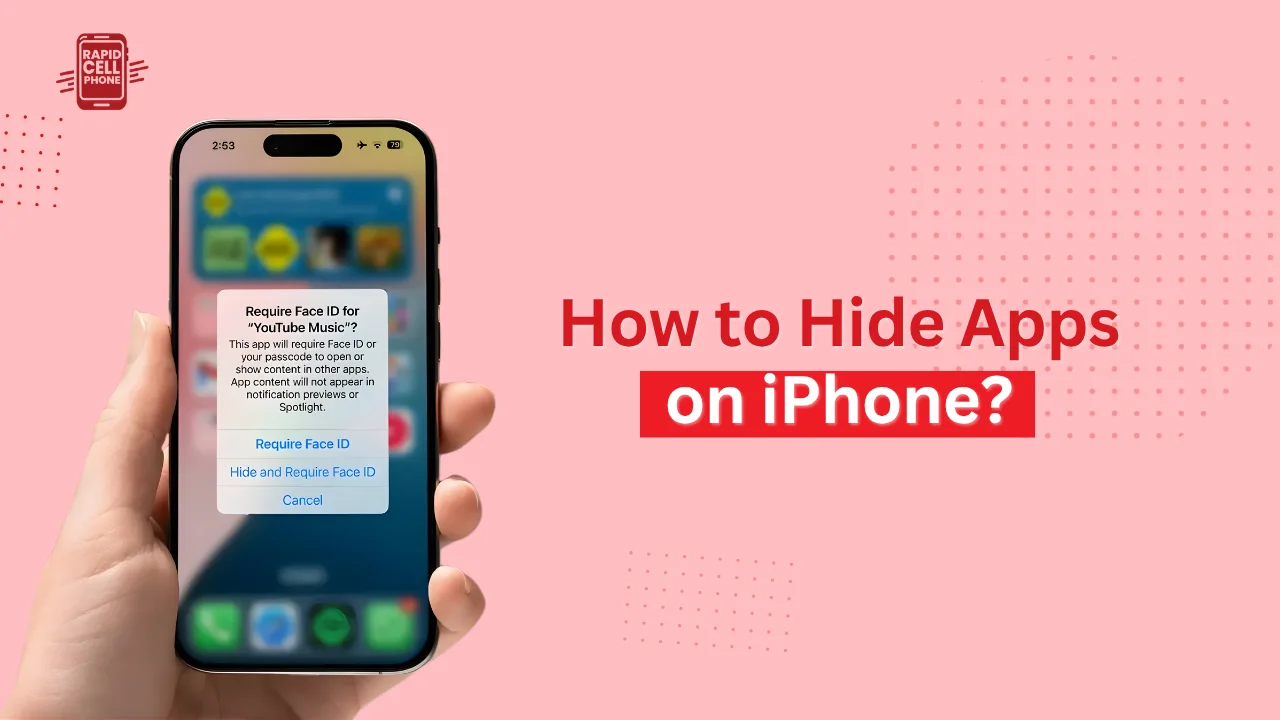
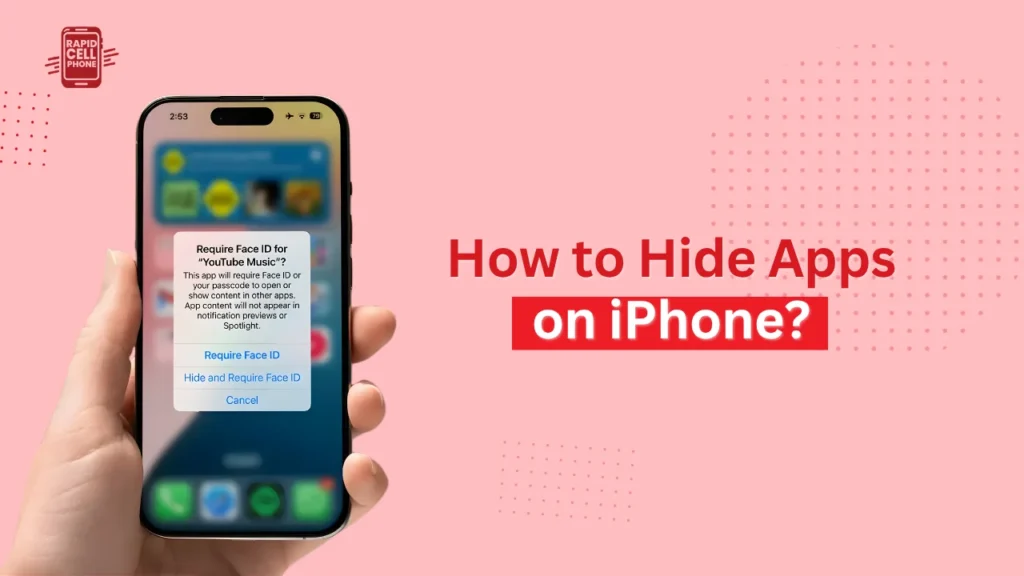
iOS 18 Apple introduced a potent privacy update enabling you to lock and hide apps using Face ID. This technique also conceals the app but it has to be opened by biometric authentication. In order to do so, long-press on the app icon, and choose Require Face ID.
To cover it up entirely, tap Hide and Require Face ID. The application will be transferred to a Hidden folder in your App Library, which will not be visible in your Home Screen or in search results.
When hidden like this, even the notifications and previews of an app are hidden. It is the most effective way to protect personal apps such as Messages or Notes, or banking apps. The app can be unhidden or unlocked at any time using Face ID or Touch ID.
How to Find Hidden Apps on iPhone
It is very easy to lose the location of your concealed applications. Fortunately, one can find them in a few ways.
The broadest approach is the App Library. In the home screen, swipe to the left till you get into the App Library. In this case, you may go through categories or the search bar located on the top. In iOS 18, you will find a Hidden folder, in which all hidden apps with Face ID are saved safely.
Still not finding the app? Visit the App store and tap your profile image, selecting Purchased. This list shows all applications you have ever downloaded including the ones that were not visible. To see all the apps installed on your iPhone, you can also go to Settings General iPhone Storage.
Advanced Ways to Disguise or Restrict Apps
To users who may wish to have a little bit more control, there are some ingenious workarounds to masquerade or lock down apps on your iPhone.
One of the tricks is the Shortcuts app. You can also make your own shortcut to open an application but with another name or icon and then you can hide the original application. It is a small trick to ensure that your apps are visible, yet not noticeable.
Alternatively, it can be via folders. You may hide apps at the bottom of folders so that they become invisible. To illustrate, you might have personal apps concealed in a Utilities folder a few swipes away. Lastly, the Screen Time feature provides a privacy layer as well.
In the Settings, go to Screen Time, Content and Privacy Restrictions, Allowed Apps and switch off the apps you do not want seen. This is particularly convenient when you wish to limit built-in applications that can not be uninstalled in Apple.
Troubleshooting Hidden Apps
There are times that users cannot use apps after concealing them, including not being able to locate them or getting notifications anyway. If that happens, don’t worry.
Firstly, to verify the presence of the app, open your App Library or Settings iPhone Storage. When you are unable to hide the apps, ensure your iPhone is updated with the latest iOS version as the Face ID hiding option can only be accessed in iOS 18 or more.
In case notifications of concealed applications still appear, go to Settings Notifications, choose the application, and switch off notifications. This will keep any undesirable alerts off.
Conclusion
It is now easier than ever to control who sees your data, as well as to clean up your iPhone. You can either just want to take the apps off the Home Screen, obscure them in Search, or go full Face ID and keep everything away, but whatever your user level, there is a way to do it.
These are some of the tricks that you should attempt today so that you can reclaim the layout of your iPhone and safeguard your personal space. After perfecting these steps, you will have a more clean interface and will feel more at ease knowing that your personal apps remain there.
FAQs About How to Hide Apps on iPhone?
How do I hide app icons on iPhone?
Any app can be hidden by pressing and holding the icon, then Choose Remove App and then Choose Remove from Home Screen. The app remains in your App Library, without showing up on the main screen.
How to hide apps on your iPhone without deleting them?
Remove the app from your Home Screen or turn off its visibility in Siri & Search settings. You can also hide it completely using Face ID if your iPhone supports iOS 18.
How to find hidden apps on iPhone?
To access your App Library, swipe left and browse the Hidden category or search the name of the app. You can also see all the installed applications in the iPhone setting in iPhone storage.
Can built-in Apple apps be hidden?
Screen Time restrictions can be used to conceal some of the built-in applications such as Safari or Mail, but not all such as Settings or Messages.
Is hiding apps on iPhone completely private?
Not entirely. Developed applications will not show up on your Home Screen or in Search, and some might still be listed in either your purchase history in the App Store or Screen Time usage. To maintain more privacy the Face ID hiding feature can be used.
0 Comments