
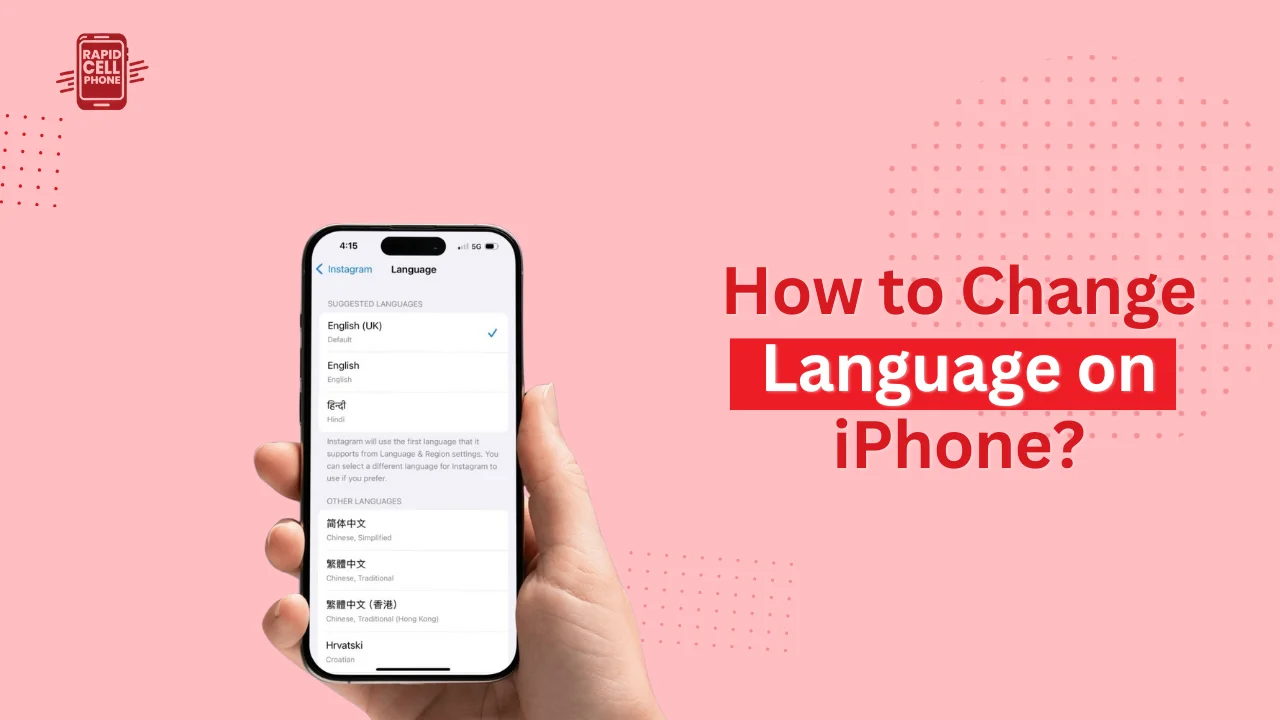

The ability to switch the language in an iPhone is a trick that is not complex, yet, it has great power. IOS also lets you completely customize language settings, whether you bought your device in a different country, learning a new language, or just prefer different apps to look in different languages. With this step-by-step tutorial, you can find out how to change language on iPhone not only the system language but also the keyboards language, Siri language, and even language of a particular application.
Table of Contents
How to Change the System Language on iPhone
Everything that you see on your iPhone, such as menus, settings, notifications, and default app text are all regulated by the system language. When you switch the system language, iOS resets the whole interface accordingly.
Firstly, launch the Settings app on your iPhone. To do this, scroll down and tap General, and in the next screen, tap Language and Region. In this section, you will find your existing language displayed at the top. Tap Add Language, select a language you wish to use, and confirm by selecting Use [Language] on the next screen.
Your iPhone will automatically change to the new language. In other instances, fonts and layout may briefly reconfigure, but no restart is necessary. Your personal data, apps, and files are not impacted by this change; it is only the display language that changes.
Understanding Language & Region Settings
Apple gives you the ability to control more than language in the Language and Region menu. The region setting determines date, time, type of calendar and currency.
As an example, when using your iPhone, you can set up English as the language, and your Region as Pakistan, UAE, or the United States. This comes in particularly handy when you want the right local formats but you do not want to alter the primary language of the phone. The system language is independent of the region, which is why both can be adjusted.
How to Change Keyboard Language on iPhone
Just a change in system language does not necessarily change your keyboard language. You need to add the keyboard manually in case you want to type in another language.
Go to Settings, then go to General and tap Keyboard. Under the Keyboard section, you will see an option called Keyboards, and once you tap it, you will see an option to add a new keyboard. Select the language to type. After addition, you can alternate between keyboards during typing by tapping the globe icon on the keyboard.
You can switch keyboards instantly by holding the globe icon, which displays all installed keyboards. This is suitable to bilingual users who would like typing in several languages without altering the whole phone language.
How to Change Siri Language on iPhone
Siri operates with a different language environment and does not behave automatically in accordance with your system language. This will enable you to talk to Siri in another language without any change in the iPhone interface.
To modify the language used by Siri, navigate to Settings/ Apple Intelligence and Siri (or Siri and search in any of the iOS versions) and select the language you want. Tap Language and select your preferred language.
Before activating, Siri can pause and download the new voice data. After updating, Siri will comprehend and answer in the chosen language. It comes in particularly handy when a user is learning a new language or simply uses Siri in a bilingual family.
How to Change Language for Individual Apps on iPhone
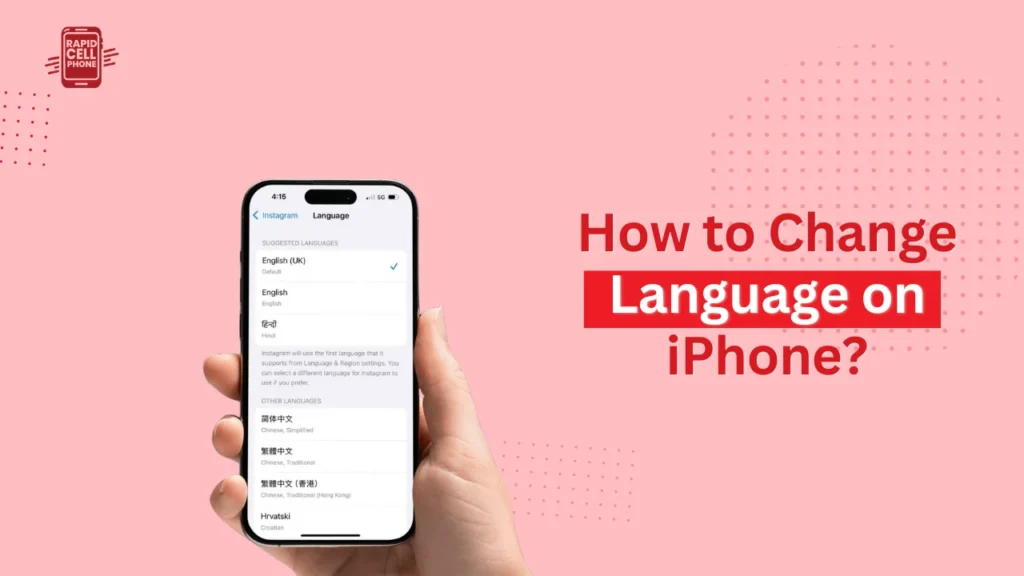
The possibility of configuring individual app languages is one of the most helpful iOS features. This implies that you can continue to use your system language but at the same time operate some applications using a different language.
You need to ensure that the language you desire to do this with is selected in the iPhone under Settings > General > Language and Region, before doing so. Subsequently, navigate to Settings and go down to the point when you see the application that you wish to tailor. Click the name of the app, and then, in case there is such a choice, Language or Preferred Language.
Select the language of your choice and shut down the app. The application will show the content in the chosen language when you open it again. You should remember that this feature only applies to applications that can support more than one language.
Why Some Apps or App Store Stay in Another Language
It also happens that despite switching your iPhone language, some apps or even the App Store could be in another language. This often occurs due to the connection of the App Store language to the region of your Apple ID, and not only the language of your system. In case this happens, make sure you check your Apple ID country/region settings.
However, in other situations, the problem can be resolved by signing out of your Apple ID and signing in again or rebooting the device. Limited localization can also be a cause because not all apps fully support all languages.
Common Problems and How to Fix Them
When your iPhone language fails to change, the first thing you can always do is to restart your device. This fixes the majority of short term problems. Ensure that you are running the latest iOS version because the older versions do not support all languages.
In case of lack of per-app language options, add the language on the system level then. The language option is not displayed in many apps unless multiple system languages have been installed.
In case of keyboard problems, the prediction or autocorrect problem can mostly be solved by removing and re-adding the keyboard. Finally, you may use the last point of transferring everything and resetting all settings, which is done with the help of Settings >General > Transfer or Reset iPhone > Reset > Reset All Settings.
This will not erase information but it will reformat system preferences.
Final Thoughts
You are now fully informed on how to change language on iPhone be it the entire system, the entire keyboard, Siri or the individual applications. The multilingual and traveling customers, as well as learners, are also suited to use iPhones because of the flexible language system.
FAQs About How to Change Language on iPhone?
Can I use more than one language on iPhone?
Yes, iOS is multilingual. It allows you to add multiple languages and alternating between them at any moment, but only one may be the primary system language at once.
Will changing the language delete my data?
No. Changing the language does not change the appearance of text on your screen. Your files, photos, and applications are not touched.
How do I change the language back to English?
Go to Open Settings > General > Language and Region, and choose English, and ensure that it is the first language.
Why doesn’t an app show language options?
The app might not support various languages. Certain applications will only use the system language, and do not provide language control per application.
0 Comments