
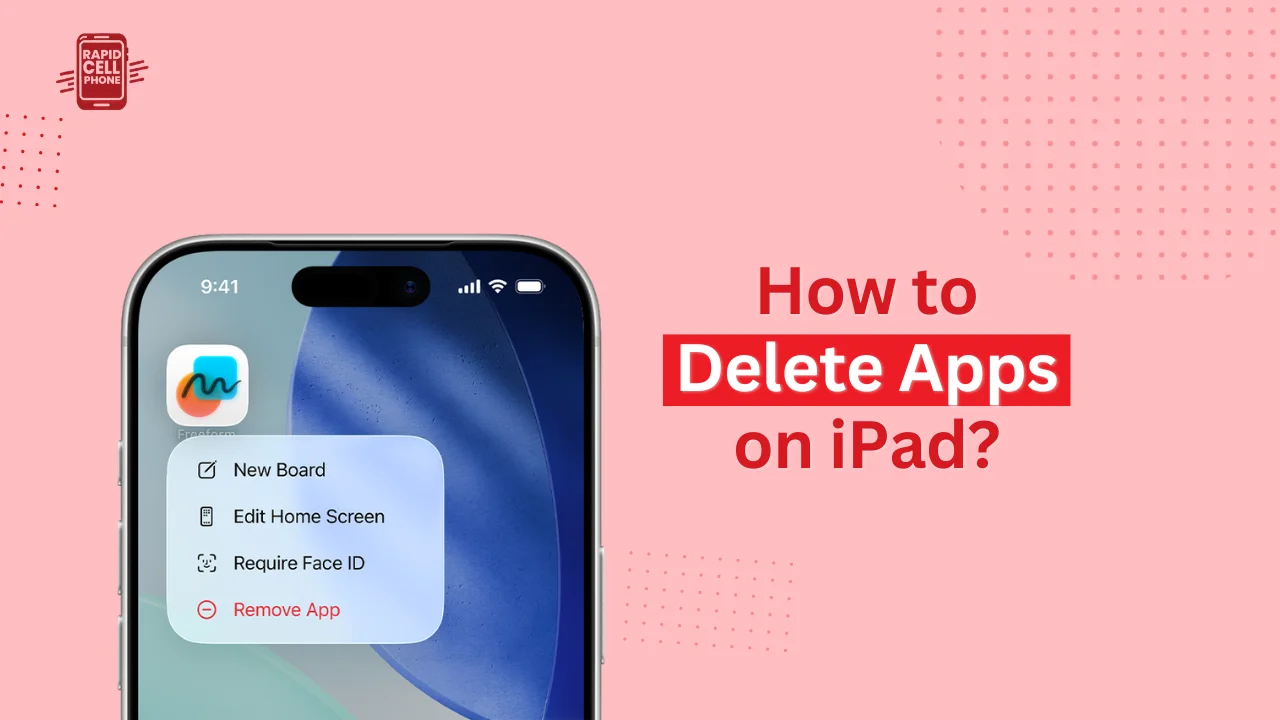

To know how to delete apps on iPad is necessary when your iPad feels slow, has no more space, or when your Home Screen is full of apps you do not use anymore. You can uninstall apps permanently, remove pre-installed Apple apps, or even offload apps without erasing data all in different safe and easy ways, which iPadOS offers.
This guide describes all the techniques step-by-step, depending on the current iPadOS versions, and adheres to the official system behavior provided by Apple, yet introduces practical solutions used by users.
Table of Contents
Why You May Need to Delete Apps on iPad
With time, iPads get numerous apps, caches, and downloads that do not have any uses and occupy precious memory and slow down. Uninstalling apps can help free space, speed up, and clean up your Home Screen, and even troubleshoot malfunctioning programs. Before selling or resetting their iPad, many users will delete apps as well, so uninstallation is a crucial maintenance activity.
How to Delete Apps on iPad from the Home Screen
Standard App Deletion Method
The quickest way to delete apps on iPad is through the Home Screen method.
To uninstall an application, simply tap and hold the icon and a menu will come up. Click the Delete App and select the Remove App and confirm. The application, and all the data it contains stored on the device, will be destroyed forever.
This method applies to both third-party applications and the majority of removable Apple system applications.
How to Delete Apps Using the App Library
Removing Hidden or Organized Apps
When an app does not appear in your Home Screen, it is probably in the App Library. Swipe to the left to the App Library, find the app, press its icon and then press the delete button, which will remove it permanently.
It comes in handy, especially when the user maintains understated Home Screens and uses categories in the App Library.
How to Delete Apps from iPad Settings
Using iPad Storage for Space Management
Removing apps via iPad Storage enables you to establish which apps are taking up the larger part of space.
Open Settings, choose General, and tap iPad Storage. Once the storage list has loaded, tap the app that you wish to uninstall and tap Delete App. Select to remove it, with all the documents and cache it holds.
This is the best way to handle large games, video editors and social media applications where substantial amounts of data are stored.
How to Offload Apps on iPad Without Losing Data
Offload vs Delete
Offloading uninstalls the app but preserves documents and settings. Your data is automatically restored as you reinstall the app later.
In order to unload an app, open the Settings, tap on General, iPad storage, select the app and followed by the choice to offload App. Another option is to allow apps that are not used to be automatically offloaded in the App Store settings.
The offloading method is advocated in case there is a low storage but you still need to save the app data.
Can You Delete Built-In Apple Apps on iPad?
Removable vs Non-Removable System Apps
Apple can be configured to remove a large number of default applications, including Books, Calendar, Calculator, Maps, Music, Notes, Podcasts, Stocks, Tips, TV, and Voice Memos. They can be uninstalled like third-party applications.
Nevertheless, fundamental system applications such as Settings, Safari, Camera, Photos, App Store, Messages, and Phone cannot be removed since they are fundamental to iPadOS usage.
Uninstalling system applications will delete the icon and user data, but not all the background system files.
Why You Can’t Delete Apps on iPad
Screen Time Restrictions
In case the Delete option is not displayed, Screen Time restrictions can be turned on. Go to Settings, Screen Time, Content & Privacy Restrictions and iTunes and App Store Purchases, and enable App Deletion.
Device Management Profiles
iPads in schools or companies will frequently be configured with Mobile Device Management (MDM) that prohibits the deletion of apps. In this situation, the administrator is the only person who alters permissions.
System Glitches or Outdated iPadOS
The bugs can be deleted temporarily. Usually, this problem can be resolved by restarting the iPad or updating to the newest iPadOS version.
What Happens When You Delete an App on iPad?
Uninstalling an application destroys the application and any data stored locally. Assuming that the app syncs with iCloud, then some data might be left in your iCloud account. The app itself can be re-installed always through the App Store with the same Apple ID.
Apps offloaded save all data, and when they are deleted, they erase all data unless they are restored through an iCloud backup.
Will Deleting Apps Remove Them from Other Apple Devices?
Uninstalling an app simply erases it on the existing iPad. It does not take away the app in your iPhone or other iPads with the same Apple ID. Nevertheless, the acquisition is in your App Store history and can be downloaded at any time.
Best Ways to Free Up iPad Storage Without Deleting Important Apps
It is also possible to optimize storage by offloading idle applications, deleting Safari temporary files, unloading big videos, managing iCloud photos, deleting downloaded media, and adhering to Apple iPad storage tips.
Conclusion
Knowing how to delete apps on iPad means you have total control over the storage of your device, its performance and structure. Removing apps to the Home Screen, App Library, or into the Settings, or even just to offload them, all have their purpose. It is also safe to delete most of the default Apple applications and to troubleshoot deletion-restrict situations.
Through good management and uninstallation of the app, you can guarantee a faster, clearer, and effective iPad experience that is in line with the best practices of Apple and content quality practices of Google.
FAQs About How to Delete Apps on iPad?
Can I delete multiple apps at once on iPad?
Apple does not yet offer a built-in capability to uninstall multiple apps at once. All apps need to be deleted separately on the Home Screen, App Library, or iPad Storage. But automatically offloading apps leaves the data intact, but unneeded apps are automatically deleted.
Will deleting an app remove its data?
Yes. Removing an app permanently removes all local files, caches, and settings related to the app. You might also have some data in your cloud account in case the app is connected to iCloud. The unloading of apps, however, does not destroy the data of the apps, but the application is eliminated.
Can I reinstall deleted apps?
Absolutely. The deleted apps can be downloaded again at the App Store with the same Apple account. Bought/free applications can be stored in your App Store library, and they can be reinstalled, but only offloaded applications automatically preserve your past data.
Can I delete built-in Apple apps on iPad?
Yes, it is possible to delete a variety of Apple apps, including Calendar, Music, Maps, Notes, Podcasts, and TV. But some basic applications such as Settings, Safari, Photos, Messages, and Camera are not removable. Uninstalling an inbuilt application removes its icon and data but system elements remain unchanged.
Does deleting an app improve iPad performance?
Yes. Deleting apps, particularly the large apps or background running apps can release storage space and boost the device speed and battery life. To achieve the best performance, delete apps in combination with unloading apps that are not used and deleting cache files.
0 Comments