
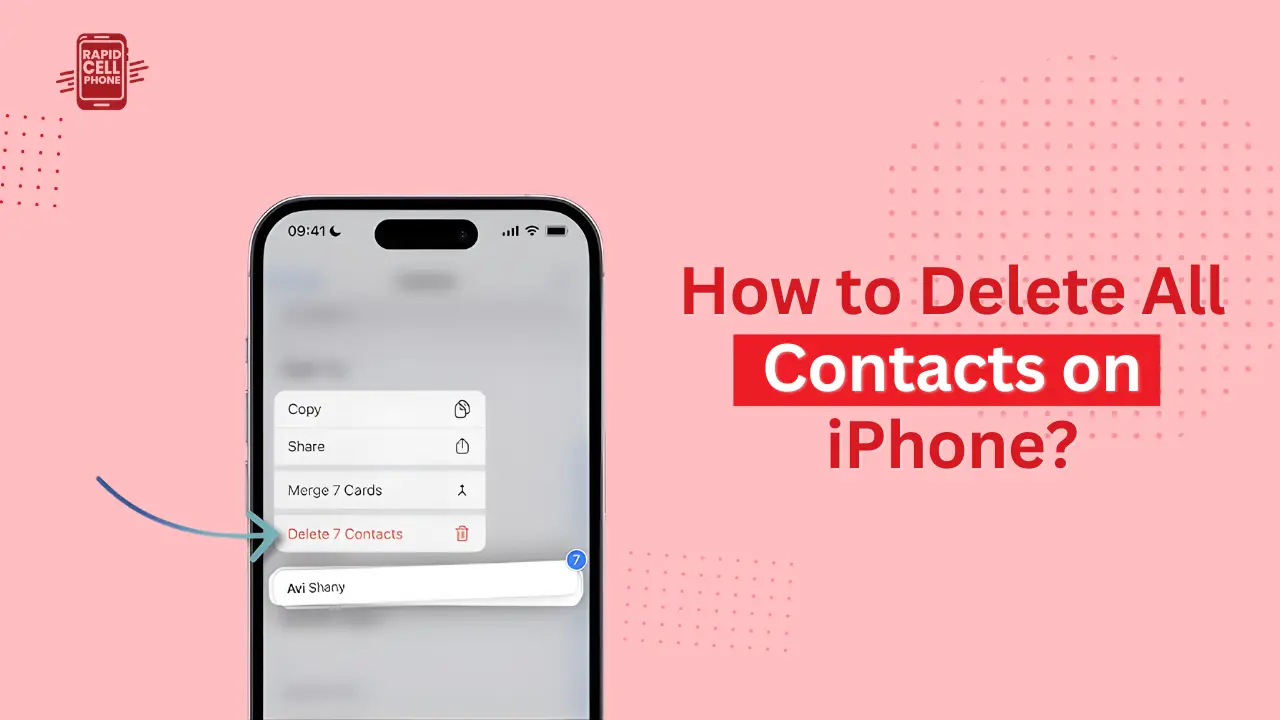

Eventually it becomes hard to handle contacts on the iPhone, particularly when there is very old numbers, duplicate contacts and synced contacts filling your phone book. A large number of users eventually seek an answer to how to delete all contacts on iphone when changing devices, attempting to resolve sync issues, or ensuring phone privacy prior to selling the phone.
Contrary to android, ios does not have a simple Delete All button within the Contacts application, making it baffling to many individuals. Nevertheless, there are credible methods to permanently remove every contact on iPhone in batch, regardless of whether they are hosted in iCloud, Gmail, Outlook, or on the device itself.
The guide describes all the effective and safe procedures, bulk deletion, permanent deletion, and recovery procedures.
Table of Contents
How iPhone Stores Your Contacts
You should know where your contacts are stored before you learn how to delete all the contacts on iPhone.
Local Contacts vs iCloud Contacts
Certain contacts are stored on your iPhone and others are saved to your iCloud. iCloud synchronization allows supposedly deleting a contact on one device, which also deletes it on all the associated Apple devices.
Contacts Synced from Gmail and Other Accounts
There are also many users who sync contacts with Gmail, Outlook, or Yahoo. These contacts are not saved in your phone but show up on your iphone when you synchronize your accounts. These might be removed by either disabling syncing or erasing them off the original email account.
Learning this distinction prevents a frequent problem of contacts reoccurring when they are deleted.
How to Delete All Contacts on iPhone Using iCloud
This is the quickest and sure way of removing all contacts on iPhone simultaneously.
Step-by-Step Method Using iCloud.com
Open an Internet browser on a computer and go to iCloud.com. log in with an Apple ID and access the Contacts tab. After loading your contact list, access one contact, and press Ctrl + A on Windows or Command + A on Mac to select all your contacts.
Once all entries are selected, then click the settings icon and select the delete option. Authenticate it, and contacts are cleared out of iCloud.
Now that your iPhone is connected to iCloud, all your contacts will also vanish off your phone in a few seconds.
What Happens After Deleting from iCloud
When you get rid of contacts in iCloud, they get deleted across all the devices tied to the same Apple ID. This is the best way to make sure that the clean up is complete and that the contacts appear again in the future because of sync problems.
How to Delete Multiple Contacts on iPhone Without iCloud
And even without iCloud, you can still delete many of your contacts simultaneously using your PC or Mac.
Using Mac Contacts App
Plug in your iPhone to your Mac and open the Contacts application. Activate the contact sync. Then you can select several contacts with Command key and delete them collectively. These changes will be automatically updated to your iPhone.
Using iCloud for Bulk Deletion Even If Sync Is Off
You can temporarily set the iCloud contact syncing, upload all contacts, delete them en masse using iCloud.com, and subsequently switch off syncing. This trick will enable you to delete contacts in bulk on iPhone without any third-party applications.
How to Remove Contacts Synced from Gmail or Outlook
It is sometimes desirable to be able to remove all contacts of email origin.
Turning Off Contact Sync
Open Settings, select Mail or Accounts, the connected email account, and turn Contacts off. This automatically deletes all the contacts you have synced to your iPhone but not to the email account itself.
Deleting Contacts from the Source Account
To permanently delete them, log into Gmail or Outlook through a web browsing platform and remove the contacts. They will also be deleted on your iPhone by the next sync.
How to Delete Contacts Directly from iPhone
You can remove a few contacts manually in case you need to do it only once.
Manual Deletion Process
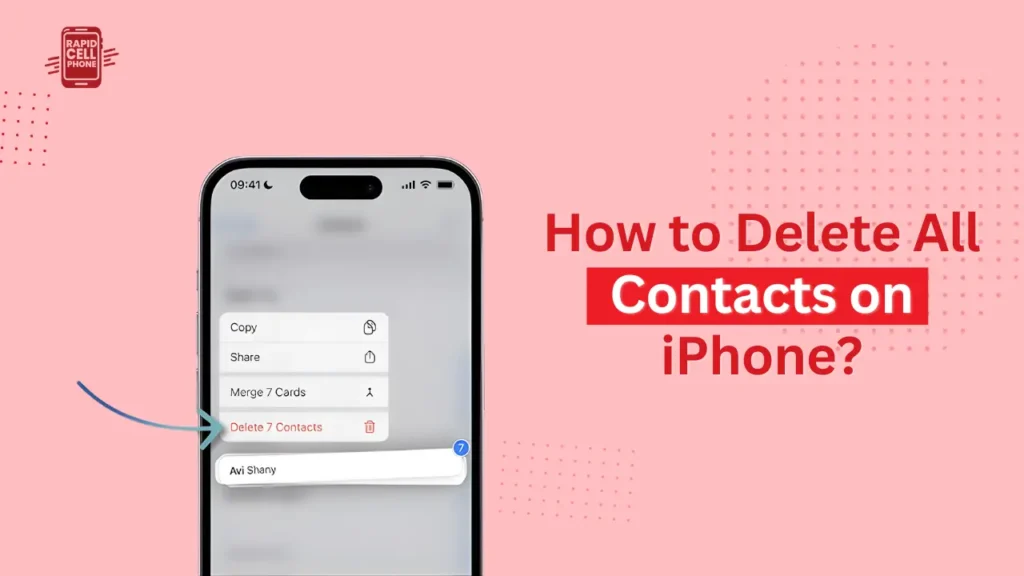
To delete a contact, open the Contacts app, tap on the contact to be deleted, tap Edit, scroll down and tap Delete Contact. Repeat this for each entry. Although this is an easy process to follow, it is not convenient and time consuming when you want to delete every contact on iPhone simultaneously.
How to Permanently Delete All Contacts on iPhone
In case you sell or give away your phone, you might wish to permanently delete all data.
Erase All Content and Settings
Open Settings, then under General, choose Transfer or Reset iPhone, and then Erase All Content and Settings. This will delete all contacts, photos, apps, and personal information and prepare your iPhone to be in the factory state.
Using Third-Party Data Eraser Tools
Certain desktop programs have secure wiping features where the data is overwritten so that the file cannot be recovered. These are handy when privacy is of great concern.
Can You Recover Deleted Contacts?
Deletion can occur accidentally and luckily, in most instances, it can be recovered.
Restore from iCloud Backup
In case you have an iCloud backup, you can restore your iPhone to a past version of the backup. This will restore your contacts and other information.
Restore from iTunes or Finder Backup
Connect your iPhone to a computer, then open iTunes or Finder, and use a previous backup to restore. The procedure will assist when iCloud backup is turned off.
Common Problems and Their Solutions
Contacts Reappearing After Deletion
This normally occurs through iCloud or email account synchronization. Always remember to remove contacts of the original source and turn off unnecessary syncing.
Duplicate Contacts
Multiple accounts are frequently merged to create duplicate entries. To merge duplicates and clean your list, you can use iCloud or contact management apps.
Unable to Delete Some Contacts
When the contacts are greyed, then it is probably controlled by a synced account. Get rid of them by turning off contact syncing of that account.
Pro Tips for Managing iPhone Contacts
Always save up your contacts prior to making bulk changes. Turn off iCloud or save contacts to your computer so they are not lost forever. Always update and unify duplicates to maintain a clean and organized phonebook. Clutter is also avoided by limiting unnecessary account syncs.
Conclusion
Understanding how to delete all contacts on iphone is quite crucial when sorting out your phone, fixing any syncing issues, or selling your phone. It also depends on the location of the contacts in your device and the extent to which you desire to erase them forever. The appropriate way is either using the iCloud bulk option, deleting the contacts in your email inbox, or simply resetting your device.
To the majority of users, the best solution is to delete all contacts using iCloud and this is the quickest and safest solution. Always save your data first, and then you will be able to clean the iPhone contact list with ease and confidence.
FAQs About How to Delete All Contacts on iPhone?
How do I delete all contacts on iPhone at once?
The simplest method is via iCloud. com where you can delete all contacts at once.
Will deleting contacts from iPhone remove them from iCloud?
Yes, when the iCloud sync is on, deleting them on your iPhone will also delete them on the rest of the iCloud and other devices that are connected.
How do I delete contacts synced from Gmail?
Turn off contact syncing on your Gmail account in iPhone settings or remove them directly out of your Google account.
Can I undo deleting all contacts?
In case of a backup that was made prior to deletion, you can restore them using an iCloud or an iTunes backup.
0 Comments