

When you use Mac on a regular basis, you have most likely come across the spinning beach ball at least once. A particular app suddenly freezes and you can not click anything, as though your system is frozen. Under such circumstances, the knowledge on how to force quit on Mac can save you time, frustration and enable you to reclaim control without rebooting your whole computer.
One of the most practical built-in features in macOS is force quitting. It enables you to terminate an unresponsive program on the spot when it will not otherwise provide a graceful exit. Through this step-by-step tutorial, you would know how precisely to force quit an app on Mac under different approaches, when to resort to it, what is the result after doing so and how to stop the repetitive freezing of apps in future.
Table of Contents
What Does Force Quit Mean on a Mac?
The Force Quit option is a feature of the macOS operating system that is used to close an app that has stopped responding. When everything is fine, you close applications by clicking Quit in the menu bar or Command + Q. Those commands can be ignored by application when it becomes stuck.
On Mac, when an application is force quit, the system terminates the app immediately rather than allowing it to close gracefully. This works in contrast with a normal quit process since the app does not finish background processes or leave temporary information behind upon termination.
You need to know that the act of force quitting does not damage the hardware of your Mac. Nevertheless, it may lead to the loss of unsaved work unless the app saved your progress automatically.
Quit vs Force Quit
An exit will shut down the application correctly. It winds up active processes, writes data where feasible, and departs cleanly. Instead, force quit is more of an emergency stop.
When you select Force Quit, macOS instantly kills the process of the app. That is why it is used only in those cases when the app starts to become totally unresponsive and does not want to shut down in usual manner.
In short, Quit is routine. Freeze Quit is a rescue to frozen or crashed applications.
How to Force Quit on Mac Using the Apple Menu
The Apple menu is one of the simplest methods of closing a frozen app. This technique is most effective when your system is still alive but a particular application is not.
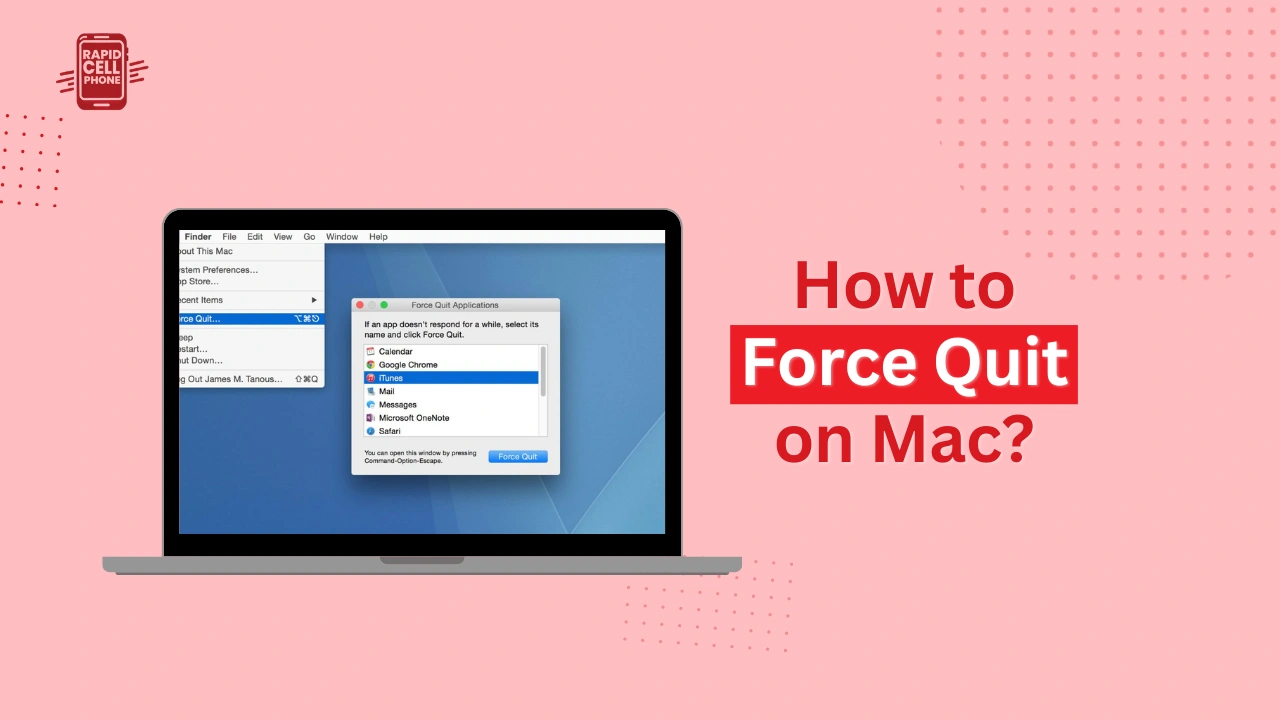
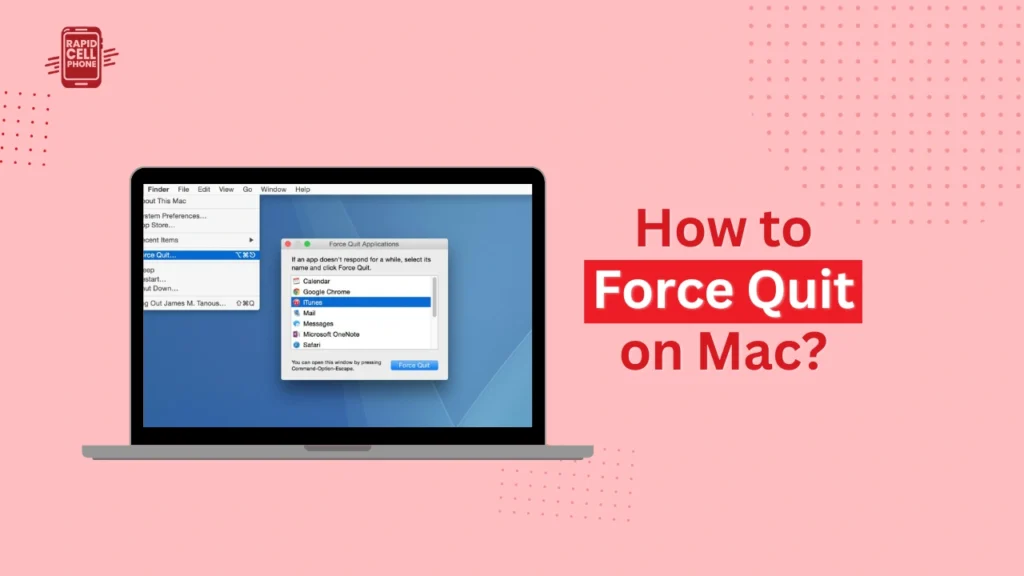
You can do this by clicking on the Apple logo in the upper-left hand corner of the screen. Select Force Quit in the dropdown menu. A window will be displayed with a list of all running applications. The unresponsive app will typically be indicated in such a way.
Select the frozen app in the list and force quit. You might be requested to verify your decision. When verified, the application will be closed automatically by macOS.
This is the best way to start since it does not demand shortcuts or technical expertise.
How to Force Quit an App on Mac Using a Keyboard Shortcut
The quickest and most popular way is a simple keyboard shortcut. This option is highly effective in case your mouse is slow or in case you want speed.
Press Control + Alt + Escape at the same time. This opens the Force Quit Applications window immediately. There, pick the non-responsive application and choose the Force Quit button.
This shortcut even when the frozen application is consuming your entire screen. It is regarded as the most effective method of forcing Quit on Mac and should be memorized.
How to Force Quit an Application on Mac from the Dock
The other handy way is the Dock. In case the app icon remains visible and your system is responsive, you can close it directly.
Click the icon of the app in the Dock, right-clicking. When you do not have a right-click option, press the Control key and make your clicking. Then, press and hold the Option key on your keyboard. What you will find is that the Quit option changes into the Force Quit option.
Click Force Quit and the application will end automatically.
The technique proves to be especially useful when a single application is frozen and all other processes are running well.
Using Activity Monitor to Force Quit Stubborn Apps
In some cases an application fails to be displayed in the Force Quit window or it remains running in the background. Activity Monitor is your friend in this scenario.
Open Finder and go to Applications, Utilities and run Activity Monitor. Another way to open Spotlight is to press Command + Space and type in Activity Monitor.
After clicking, you will be shown the list of all running processes on your Mac. Find the unresponsive app in the list. Click on it and choose the stop button (an X icon) at the top of the window. Select Force Quit.
Activity Monitor is more sophisticated compared to other techniques since it displays detailed system processes, CPU, memory consumption, and background applications. This renders it very useful in the diagnosis of recurring freezing issues.
How to Force Quit on Mac Using Terminal
In more advanced usage, another powerful way of closing applications with Terminal is provided. This method is uncommon but may be handy in the event of failure of graphical tools.
Open Terminal under Applications and Utilities. It can also be found using Spotlight search.
Type the command:
killall AppName
Change AppName with the name of the application you wish to close. As an illustration, typing killall Safari would automatically shut down Safari.
To close an app, Press Enter and the system will make the app close.
This approach needs to be executed cautiously because Terminal commands can directly interact with system processes. It is most appropriate to users who are familiar with command-line tools.
What Happens When You Force Quit an App?
MacOS terminates an actively running process when you force quit an app. The system will not wait until the background tasks are complete or until unsaved data is written.
Auto-saving mechanisms save your work in most current applications. Nevertheless, when working on a document that has not been saved, you might lose new changes.
Force quitting does not destroy the hardware and operating system of your Mac. Nevertheless, when an application often slows down and needs a forceful termination, it can be a sign of something more serious in the software.
What to Do If Force Quit Doesn’t Work
Even force quitting can fail in exceptional situations. Should that occur, there are other measures you can take.
Rebooting Finder can occasionally fix the small glitches in the system. To open the Force Quit window Command + Option + Escape, then choose the Finder and then clicke Relaunch.
When things get more unstable with the system, it is usually a good idea to restart your Mac. Click the Apple menu and select Restart. This erases memory and clears system processes.
Should your entire Mac just stop responding altogether, then you might have to press the power button a few seconds to do a hard reboot. It is safe sometimes but it is a last resort.
Why Do Apps Freeze on Mac?
Knowing the reason behind the freezing of the apps can minimize the force quit option.
Some of the usual reasons are a lack of sufficient RAM, excessive number of running applications, old versions of macOS, damaged application files, or software incompatibility. Background processes that consume high amounts of CPU can also drag your system and your applications may become unresponsive.
Freezing can be drastically reduced by updating your system and not multitasking too much.
How to Prevent Apps from Freezing in the Future
It is always better to prevent than cure.
By ensuring that you regularly update the macOS, you would keep up with the latest stability enhancements and bug fixes. It is also important that you upgrade your applications because the developers often provide patches to address performance problems.
Rebooting your Mac periodically can also help clean up temporary files and cleanse system memory. Activity Monitor can also be monitored to identify the apps that use too many resources.
When a particular application seems to be freezing regularly, it may be necessary to install it again or update it.
Final Thoughts
Learning how to force quit on Mac is a skill that no Mac user should be without. It can be a reliable method to close frozen applications by using the Apple menu, a keyboard shortcut, the Dock, Activity Monitor or Terminal, but all these methods are good.
Although force quit is a useful emergency solution, it must not become a habit. The frequent freezing can also indicate the presence of performance problems that require management. You can decrease the quantity of forced quit applications completely by updating your system, using resources prudently, and checking the behavior of applications.
Having learned to use several methods that have been tested and proven to successfully quit an application on Mac, you can now be more assured that you can handle an unresponsive application without rebooting your system.
FAQs About How to Force Quit on Mac?
How do I force quit an app on Mac that won’t close?
Press Command + Option + Escape, choose the application and Force Quit. Still cannot close it, then terminate the process with Activity Monitor.
Is force quitting bad for my Mac?
There is no harm to the hardware of your Mac caused by force quitting. It can, though, lead to the loss of data that has not been saved.
Can force quitting damage software?
It is safe to force quit occasionally. Nevertheless, the frequent crashes can be a sign that the app requires new updates or re-installation.
Why doesn’t my app appear in the Force Quit list?
Certain apps operate as a background task and are not included in the regular list. Find and kill them using Activity Monitor.
0 Comments