
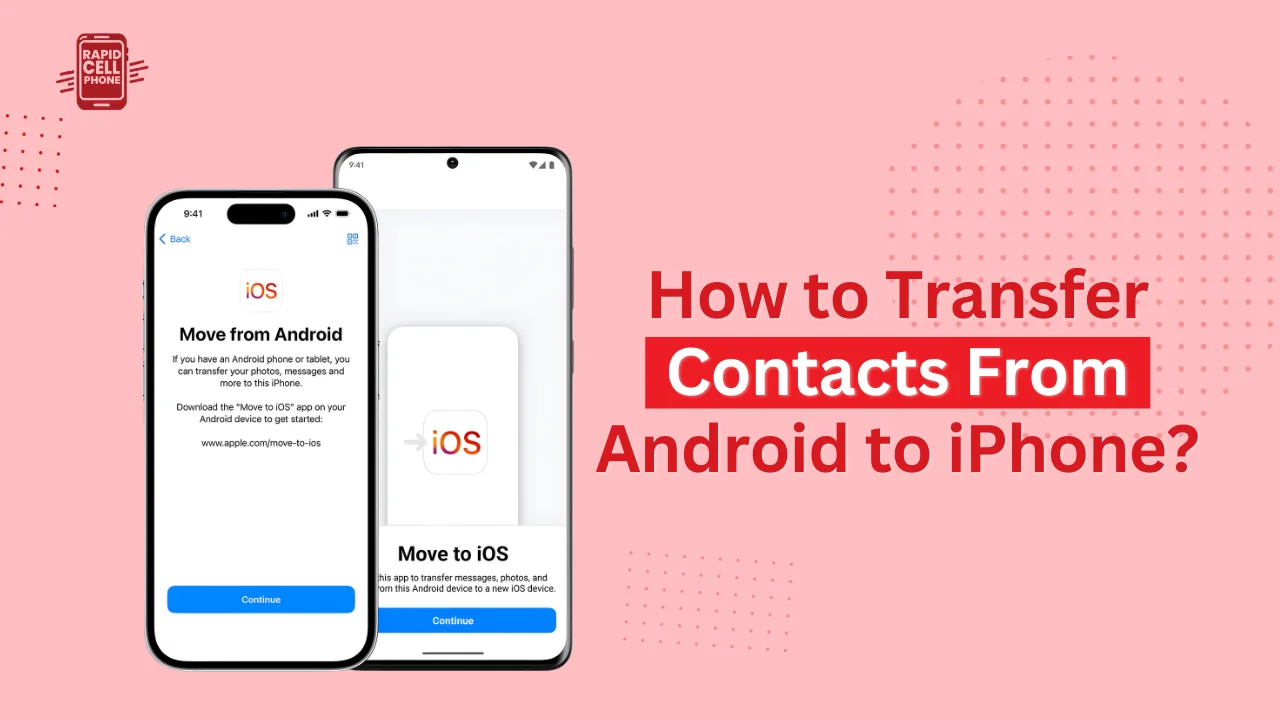

Changing Android to iPhone is a thrilling experience; however, transfer of your information including contacts can be daunting. Luckily, it is now much easier to learn how to transfer contacts from Android to iPhone due to a number of useful, step-by-step options. There is always a solution to that situation, whether you are just installing a new iphone or you have been using it long enough.
This step-by-step guide takes you through six transfer techniques that work, clarifies the pitfalls, and even demonstrates the opposite process like how to transfer contacts from iPhone to Android and how to transfer all contacts from iPhone to Android.. At the end, you will have a definite idea of what kind of transfer option will best fit your device, your circumstances, and the level of comfort.
Table of Contents
Choosing the Right Method for Transferring Contacts
It is always good to know which method of transfer best suits your needs before going on with the step-by-step instructions. To illustrate, the official Move to iOS app is the best program to use when configuring a brand-new iPhone, and Google syncing is the most effective when one likes to have automatic updates between two devices. Offline solutions such as VCF files or SIM card transfers are splendid when you need fast manual ways. Third-party tools contain more robust features when it comes to users who will transfer via a computer.
Knowing these differences enables you to select the most effective approach immediately without having to waste time experimenting with the alternatives that might not suit your case.
Method 1: Transfer Contacts Using Move to iOS (Best for New iPhones)
One of the most effortless methods of transferring contacts is Apple Move to iOS app, particularly when you are setting up a new iPhone. This is an official approach supported by Apple and it is aimed at establishing a secure connection between your Android phone and your new iPhone as part of the process of setting up.
How Move to iOS Works
Once you start the Move to iOS application in your Android phone, an iPhone creates a private Wi-Fi network. This enables the two phones to communicate with each other without having to use external Wi-Fi or mobile data. The only thing you do is to choose what you want to transfer, contacts, messages, calendar events and so on and the app does all the transferring on its own.
Step-by-Step Guide
First, download the Move to iOS application through the Google Play Store on your Android device. After installation, you will be presented with the initial setup screens that you will take to the Apps and Data section. In this case, you should choose Android Move Data. In your Android device, open the Move to iOS application and press Continue. You will see a code on your iPhone; this code must be typed into the Android application.
Once the connection is made, select Contacts (and any other information you would like to transfer). The transfer will start and in a few minutes, you will see your contacts on your iPhone.
Limitations of Move to iOS
Move to iOS is only applicable during the first setup. To use this method, you would have to reset your iPhone to do it after you have already configured it, and that is why many users prefer to use Google sync or VCF instead. The transfer speed might also be different in case you add photos and videos, which can slow down the process.
Method 2: Transfer Contacts Through Google Sync
This is an incredibly convenient way when you have a Google account on your Android device that most Android users do. Even in case of iPhone, Google automatically backs up your contacts and makes them accessible in any new device.
Preparing Your Android for Sync
The first step is to make sure that your contacts are synced to your Google account. In your Android phone, you can turn on syncing of Contacts by opening the Settings app, taping on Accounts, then Google, and making sure the Contacts option is turned on. When turned on, Google will keep your contacts in its cloud servers.
Adding Your Google Account to Your iPhone
On your iPhone, go to Settings, and select Mail or Accounts, according to the version of iOS. Click on Add Account and select Google. Log in with your Google account. After signing in, turn on the Contacts switch. Within minutes the list of all your Google contacts is visible on the Contacts iPhone app.
Why Google Sync is a Great Option
This technique is applicable at any time, during installation or many years later. It also maintains contacts as well as keeping them in order with the devices, that is, any changes made on your Android can automatically be represented in your iPhone, provided that syncing is enabled.
Method 3: Transfer Contacts Using a VCF (vCard) File
The VCF file method is an easy, cross-platform, and off-line method. This process allows you to save your contacts into a file and add them into your iPhone at a later date.
Exporting Contacts on Android
On your android phone, open your Contacts app and find Export or Share contacts. Choose Export to .vcf file. Your phone will make a single file with all of your contacts. This file can be saved in the internal storage or sent to your email.
Importing the VCF File on iPhone
After having the VCF file, open the file in your email or Files application in your iPhone. You will see a popup asking you to Add All Contacts. Verify the action and your contacts will immediately be added to the Contacts app on the iPhone.
Why Choose the VCF Method
No internet connection is needed in this approach. You will want it in case you like to be in charge of your data manually or you need one-time transfer between phones.
Method 4: Transfer Contacts Using Your SIM Card
In case you already have contacts in your SIM card, you can transfer them to your iPhone at a fast speed and offline as well.
Exporting Contacts to SIM on Android
On your Android phone, open the Contacts app and tap the Import/Export menu. Select Export to SIM Card. Remember that the amount of storage on a SIM card might be quite small, so this is not necessarily a viable process with large contacts lists.
Importing SIM Contacts on iPhone
Place your SIM card on the iPhone. Next open Settings, scroll to Contacts, and tap Import SIM Contacts. The SIM card will be read automatically and all the contacts stored in the SIM card will be imported to your iPhone.
When to Avoid SIM Transfers
SIM cards fail to provide multiple capabilities like notes, photographs, and multiple phone numbers. In case you want to move all the contact information, you can use Google Sync or VCF.
Method 5: Transfer Contacts Using Third-Party Tools
Third-party software is a great choice to users who love to transfer data with help of a computer. Contact Transfer, AnyTrans, MobileTrans or Droid Transfer are tools that have powerful capabilities to merge duplicates, transfer various types of data and can be used either offline or online.
How Third-Party Transfer Tools Work
Mostly, you start off by installing the program on your computer (PC or Mac). Once it is launched, you can connect both your Android phone and your iPhone via USB or Wi-Fi. The software would automatically identify both devices and show the type of data that you can transfer. Choose Contacts and start the process of transferring. These tools usually include other applications like backup, restore, selective transfer, and data management.
Benefits and Drawbacks
Control is the greatest benefit. You are able to handle big contacts lists, merge duplicates and transfer other data including messages or media. However, certain software has to be bought with a license, and you will need to use a computer, which might not be convenient to all.
Method 6: Transfer Contacts Manually via Bluetooth or Share Option
There is a limit to Bluetooth sharing, though it is effective in transferring a few contacts at a time.
How to Transfer Individual Contacts
Open the Contacts application on your Android phone and pick a contact that you would like to share. Press the Share button and select Bluetooth, Email or Messaging. The contact card will be displayed in the receiving iPhone and you have the option to create new contact or add to existing contact.
When Manual Sharing Makes Sense
It is the best approach in situations where you have a few contacts to transfer like close friends, family, or business associates. It does not involve any long procedures and does not need a Wi-Fi connection.
Troubleshooting Contact Transfer Problems
Despite the most effective practices, you might face such problems as contacts being missed or duplicated. Knowing these issues can assist you in solving them in a short time.
Contacts Not Showing on iPhone
To begin with, make sure that Contacts syncing is also turned on in the Mail or Accounts settings on your iPhone. In case you moved over using VCF or SIM and yet find yourself with some of your contacts missing, then your Android phone might have saved some of your numbers in local storage and not Google. This is generally corrected by re-exporting the contacts.
Handling Duplicate Contacts
The same contacts may be obtained when synching with several sources. Duplicates can be combined in the Contacts application on iPhone or cleaned up in Google Contacts.
Missing Contact Information
In case your contacts lack fields such as notes or multiple numbers, it might be due to the fact that the SIM or manual sharing feature does not support such fields. A complete transfer should be done using Google Sync or VCF.
Final Thoughts
How to transfer contacts from Android to iPhone does not necessarily need to be a complicated process. You can choose to have automatic syncs, to do offline transfers or use software-assisted techniques, so there is something that will suit you to the latter. Using the appropriate approach, you can migrate your whole address book in just a few minutes, making the process of switching between Android and iPhone an easy and stress-free experience.
FAQs
How to transfer contacts from iPhone to Android?
The simplest way is to synchronize your iPhone contacts with Google. On your iPhone, navigate to Settings, select Contacts, add your Google account, and switch on the Contacts toggle. The contacts are automatically added to Google and can be viewed on any Android device. On iCloud.com you can also export your contacts as a VCF file and import it into your Android phone.
How to transfer contacts from android phone to iphone?
Some of the methods you can use are Move to iOS, Google Sync, VCF files, SIM card transfer or third-party software. Move to iOS works best with new iPhones, whereas Google Sync and VCF files are best with already-configured phones.
How to transfer all contacts from iPhone to Android?
Go to iCloud.com and export all your contacts to a VCF-file, and import it into Google Contacts. After this, these contacts will be automatically synchronized into your Android device.
Can I transfer contacts without internet?
Yes. SIM card, VCF file, or Bluetooth can be used to transfer contacts. All these possibilities do not need Wi-Fi or mobile data.
0 Comments